




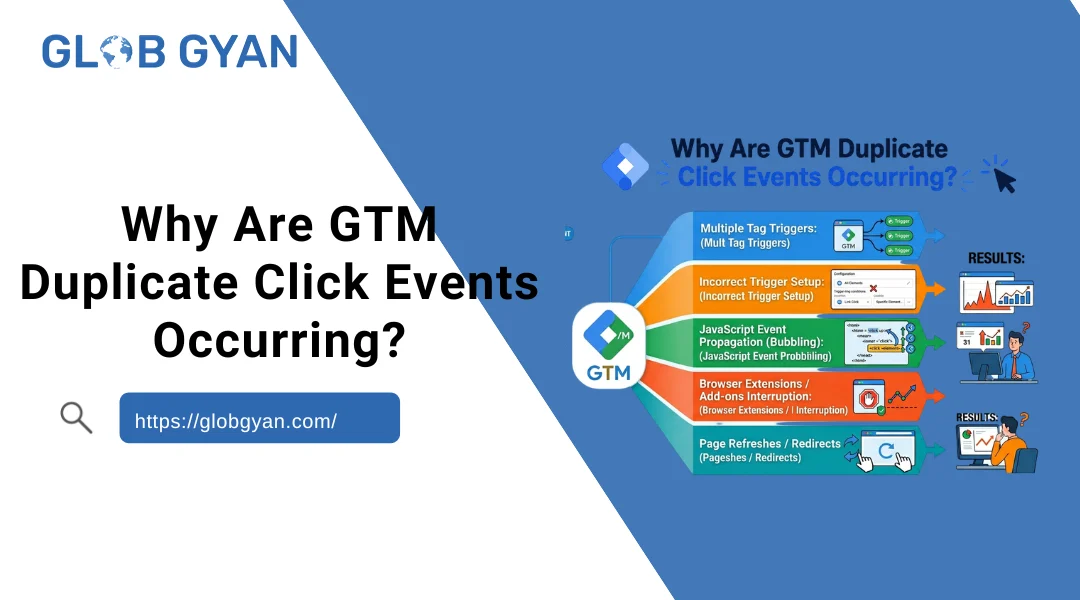
If you’re seeing GTM duplicate click events, you’re not alone. One of the most common tracking problems in Google Tag Manager is discovering that a click appears to fire twice. When this happens, many marketers immediately assume that Google Tag Manager is firing twice or that something is broken in their tracking setup.
Sometimes they’re right.
Other times, the issue is simply a misunderstanding of how GTM Preview Mode, GA4, or browser events work.
The challenge is figuring out whether you’re dealing with a real tracking problem or a debugging illusion.
Duplicate click tracking can inflate conversions, distort marketing reports, and create misleading performance data. If duplicate events are being sent to GA4, Google Ads, or another analytics platform, your reporting becomes less reliable and optimization decisions become harder to trust.
What Are GTM Duplicate Click Events and Why Do They Matter?
If you’ve ever opened Google Tag Manager and noticed the same click appearing twice, your first thought was probably, “Why is Google Tag Manager firing twice?”
It’s a common concern—and sometimes it’s a legitimate problem. But not always.
In the context of Google Tag Manager (GTM), a duplicate click event occurs when a single user interaction generates multiple tracking events for the same action. For example, a visitor clicks a “Contact Us” button once, but Google Analytics 4 (GA4) receives two identical click events instead of one.
At first glance, this may seem like a minor tracking issue. However, duplicate events can quickly create reporting inaccuracies that affect everything from conversion tracking to campaign performance analysis.
Understanding whether you’re dealing with a real duplication problem or simply a debugging artifact is the first step toward maintaining accurate analytics data.
What Does a Duplicate Click Event Look Like?
Imagine a user clicks a “Book a Demo” button on your website.
The expected behavior is straightforward:
- User clicks once
- GTM trigger activates once
- One event is sent to GA4
- One click appears in reports
With GTM duplicate click events, the process looks different:
- User clicks once
- GTM trigger fires twice
- Two identical events are sent to GA4
- Reports show two clicks instead of one
The user only performed one action, but your analytics platform records two.
Over time, these duplicated interactions can significantly distort reporting and make it difficult to evaluate actual user behavior.
False Positives vs Real Duplicate Events
This is where many existing guides create confusion.
Not every duplicate click event you see inside GTM is actually affecting your analytics data.
There are two completely different scenarios:
False Positives
A false positive occurs when duplicate events appear in GTM Preview Mode but never reach GA4.
For example, you may see:
- Multiple click-related events in Preview Mode
- Link Click followed by another click event
- Duplicate entries during debugging
This often happens because GTM is showing internal browser interactions or event propagation behavior.
The important point is that only one actual analytics event is sent to GA4.
In this situation, there is no reporting problem because your live analytics data remains accurate.
Many marketers spend hours troubleshooting what appears to be duplicate tracking when, in reality, the issue exists only inside the debugging environment.
Real Duplicate Events
Real duplicate events occur when multiple identical events are actually sent to GA4.
These duplicates become part of your analytics reports and affect business decisions.
Common examples include:
- A click trigger firing twice because of overlapping trigger conditions
- Multiple GTM containers installed on the same page
- Duplicate tracking code firing the same event
- Enhanced Measurement and custom GTM tracking recording the same interaction
- Duplicate dataLayer pushes
Unlike Preview Mode false positives, these events directly impact reporting accuracy.
This distinction is critical because the solution depends entirely on which type of duplication you’re experiencing.
Why GTM Duplicate Click Events Matter
Many website owners assume duplicate clicks are a minor inconvenience.
In reality, they can create significant reporting problems.
Let’s say your website generates 1,000 button clicks per month.
If duplicate tracking causes each click to be counted twice, your reports now show 2,000 clicks.
At first glance, that may seem like good news.
But the numbers are no longer accurate.
This creates a chain reaction across your entire analytics ecosystem.
Inflated Click-Through Rates
Duplicate click tracking artificially increases engagement metrics.
Buttons, calls-to-action, and outbound links may appear more successful than they actually are.
As a result, marketing teams may optimize campaigns based on misleading performance data.
Over-Credited Conversions
One of the biggest risks is duplicate conversion tracking.
Imagine a lead generation website where users submit a form to request a consultation.
If the form submission event fires twice:
- One lead becomes two conversions
- Conversion rates appear higher
- Cost per acquisition appears lower
- Campaign performance becomes distorted
This often leads businesses to invest more budget into campaigns that are not performing as well as reports suggest.
Broken Attribution Models
Attribution relies on clean event data.
When duplicate click events enter the system, attribution reports can assign too much credit to specific channels, campaigns, or touchpoints.
For example:
- Paid search may receive excess conversion credit
- Email campaigns may appear more effective than they are
- Organic traffic performance may become difficult to evaluate accurately
This makes it harder to understand which marketing activities are actually driving results.
Inaccurate ROAS Calculations
For advertisers, duplicate events can be especially expensive.
If duplicate clicks or conversions are sent to advertising platforms, return on ad spend (ROAS) calculations become unreliable.
A campaign that appears profitable may actually be underperforming.
Likewise, high-performing campaigns may be overlooked because of inaccurate attribution.
How Duplicate Events Impact GA4 Data Quality
One of the primary goals of analytics is to provide a reliable view of user behavior.
When duplicate events enter GA4, that trust begins to break down.
You may notice:
- Unusually high event counts
- Unexpected conversion spikes
- Sudden increases in engagement metrics
- Discrepancies between platforms
- Reporting inconsistencies across dashboards
Over time, these issues make it increasingly difficult to answer basic business questions with confidence.
This is why preventing duplicate tracking is not simply a technical exercise—it’s a data quality issue.
Even small tracking errors can have long-term consequences when left unresolved.
If you’re concerned about duplicate events inflating your analytics data, it’s worth reviewing your broader measurement strategy and data validation processes.
The GTM Duplicate Click Events Diagnostic Flowchart: Identify the Exact Cause in Minutes
One of the biggest frustrations with GTM duplicate click events is that the symptom always looks the same.
You click a button once.
Somewhere in your tracking setup, two events appear.
The problem is that dozens of different issues can produce that exact same result.
Many troubleshooting guides immediately jump into lists of possible causes:
- Multiple triggers
- Duplicate tags
- Enhanced Measurement conflicts
- Multiple containers
- JavaScript issues
While these are all valid possibilities, they don’t help answer the most important question:
Which one is causing your duplicate click events?
Instead of guessing, follow the diagnostic process below.
By working through each step in order, you can quickly determine whether you’re dealing with a GTM configuration issue, a browser-level problem, a GA4 reporting conflict, or a third-party script interaction.
GTM Duplicate Click Events Diagnostic Flowchart
START
│
▼
Are duplicate events only visible in GTM Preview Mode?
│
├── YES
│ │
│ ▼
│ Check GA4 DebugView
│ │
│ ├── Only 1 event in GA4
│ │ │
│ │ ▼
│ │ Likely Preview Mode false positive
│ │
│ └── 2 events in GA4
│ │
│ ▼
│ Continue investigation
│
└── NO
│
▼
Open Chrome Network Tab
│
▼
Multiple gtm.js requests?
│
├── YES
│ │
│ ▼
│ Check for multiple GTM containers
│
└── NO
│
▼
Check dataLayer Events
│
▼
Same gtm.uniqueEventId?
│
├── YES
│ │
│ ▼
│ Browser / listener issue
│
└── NO
│
▼
Enhanced Measurement Enabled?
│
├── YES
│ │
│ ▼
│ Possible GA4 + GTM overlap
│
└── NO
│
▼
Third-party scripts installed?
│
├── YES
│ │
│ ▼
│ External listener conflict
│
└── NO
│
▼
Trigger or tag duplication
Step 1: Determine Whether the Duplicate Exists Only in GTM Preview Mode
Before investigating triggers, tags, or JavaScript, determine whether the duplication actually affects your analytics data.
This is where many people waste the most time.
You may see:
- Two click events in GTM Preview Mode
- Multiple link-click entries
- Duplicate event names
Yet only one event is actually reaching GA4.
To verify this:
- Open GTM Preview Mode
- Trigger the click
- Open GA4 DebugView
- Compare the event count
Scenario A: Duplicate Events Only Appear in Preview Mode
If Preview Mode shows duplicates but GA4 records only one event, you’re likely dealing with a debugging artifact rather than a genuine tracking issue.
This is one of the most common false alarms associated with GTM duplicate click events.
In this situation:
- Analytics data remains accurate
- No conversion inflation occurs
- No attribution issues exist
You may not need to fix anything at all.
Scenario B: Duplicate Events Appear in Both Preview Mode and GA4
If both systems show duplicates, continue through the diagnostic process.
Now you’re dealing with a genuine tracking problem.
Step 2: Open Chrome Developer Tools and Count gtm.js Requests
The next step is to determine whether GTM itself is loading more than once.
Open Chrome Developer Tools and navigate to:
Network → Filter → gtm.js
Refresh the page.
Now count the number of GTM container requests.
One gtm.js Request
If you see a single gtm.js request, GTM is loading normally.
The duplicate event is likely being caused by:
- Trigger overlap
- Enhanced Measurement conflicts
- Duplicate dataLayer pushes
- JavaScript listener problems
Two or More gtm.js Requests
Multiple gtm.js requests often indicate:
- Multiple GTM containers
- Duplicate GTM installation
- CMS plugin conflicts
- Legacy tracking code
This is one of the fastest ways to identify GTM multiple installations.
If you discover multiple container loads, skip ahead to the section covering duplicate GTM container implementations.
Step 3: Check the dataLayer and Compare gtm.uniqueEventId Values
This is one of the most overlooked debugging techniques.
Inside GTM Preview Mode, inspect the dataLayer for both event occurrences.
Focus on:
gtm.uniqueEventId
Every GTM event receives a unique identifier.
Comparing these values provides important clues.
Same gtm.uniqueEventId
If both entries share the same gtm.uniqueEventId, GTM is often processing the same browser event multiple times.
This usually points toward:
- Event listener conflicts
- Browser-level interactions
- Third-party JavaScript interference
In other words, the problem may not originate inside GTM.
Different gtm.uniqueEventId Values
Different IDs indicate separate events entering the dataLayer.
Common causes include:
- Duplicate dataLayer pushes
- Multiple click listeners
- Trigger duplication
- Custom JavaScript firing twice
At this point, you know the duplication is happening before GTM processes the event.
Step 4: Check Whether GA4 Enhanced Measurement Is Tracking the Same Click
Next, review your GA4 property settings.
Navigate to:
Admin → Data Stream → Enhanced Measurement
Pay particular attention to:
- Outbound clicks
- File downloads
- Form interactions
Many marketers unknowingly create duplicate tracking when both GA4 and GTM are measuring the same action.
For example:
A user clicks an outbound link.
GA4 automatically records the interaction through Enhanced Measurement.
At the same time, GTM sends a custom outbound click event.
The result:
- One user click
- Two analytics events
This is one of the most common causes of GA4 duplicate click events.
If Enhanced Measurement is enabled, compare event names and parameters carefully before assuming GTM is malfunctioning.
Step 5: Investigate Third-Party Scripts and External Event Listeners
If you’ve reached this stage, the duplication may not be coming from GTM or GA4 at all.
Many websites load additional scripts such as:
- Consent management platforms
- Heatmap software
- Session recording tools
- Chat widgets
- Form builders
- A/B testing platforms
These tools frequently attach their own click listeners to page elements.
In some situations, those listeners interact with GTM and generate duplicate click events.
A real-world example:
A website uses:
- GTM for click tracking
- Microsoft Clarity for session recording
- A cookie consent manager
All three tools attach click listeners.
One user interaction triggers multiple event handlers.
The result looks like GTM is firing twice when the root cause is actually external JavaScript.
If third-party scripts are installed, temporarily disable them in a staging environment and test again.
This often reveals conflicts that would otherwise remain hidden.
Why This Diagnostic Process Works
Most articles about GTM duplicate click events focus on symptoms.
They list potential causes without helping readers identify which cause applies to their specific situation.
The framework above takes a different approach.
Instead of asking:
“What are all the possible causes?”
it asks:
“Which cause is affecting my implementation right now?”
By checking:
- Preview Mode vs GA4
- Network requests
- gtm.uniqueEventId values
- Enhanced Measurement settings
- Third-party scripts
you can usually identify the source of duplication within a few minutes instead of spending hours testing random fixes.
The remaining sections of this guide will walk through each potential cause in detail and show you exactly how to resolve it.
Cause #1: GA4 Enhanced Measurement and GTM Co-Existence (The Most Common False Positive)
If you’ve ever clicked a link in GTM Preview Mode and immediately thought, “Why is Google Tag Manager firing twice?”, there’s a good chance you’re looking at the most common false positive in modern GTM implementations.
The issue isn’t necessarily duplicate tracking.
In many cases, what appears to be GTM duplicate click events is actually the result of Google Analytics 4 Enhanced Measurement and Google Tag Manager observing the same user interaction independently.
This behavior confuses a lot of marketers because Preview Mode appears to show two nearly identical click events. At first glance, it looks like GTM is generating duplicate events or firing tags multiple times.
Fortunately, that’s usually not what’s happening.
How GA4 Enhanced Measurement Creates Apparent Duplicate Click Events
To understand the issue, it’s helpful to know that GTM and GA4 Enhanced Measurement operate independently.
When Enhanced Measurement is enabled, GA4 automatically tracks interactions such as:
- Outbound clicks
- File downloads
- Site search
- Scroll tracking
- Video engagement
To do this, GA4 attaches its own click listener to the page.
At the same time, Google Tag Manager may also have its own click listener configured through:
- Link Click triggers
- All Clicks triggers
- Custom click tracking setups
As a result, a single user click is observed by two separate systems.
Imagine a visitor clicks an outbound link.
Behind the scenes:
- GTM detects the click.
- GA4 Enhanced Measurement also detects the click.
- Both systems register the interaction.
- Preview Mode displays multiple click-related events.
This is why many users believe they are experiencing GTM duplicate events even though the underlying tracking is functioning correctly.
Why You May See Two Link Click Events in GTM Preview Mode
Let’s use a real-world example.
Suppose you have:
- A GTM Link Click trigger
- GA4 Enhanced Measurement enabled for outbound clicks
A visitor clicks a link that leads to another website.
Inside Preview Mode, you may notice:
- One click event generated by GTM
- Another click-related event generated by GA4
To someone unfamiliar with how Enhanced Measurement works, this looks like classic duplicate click tracking.
However, these are not necessarily duplicate analytics hits.
They’re simply two systems responding to the same browser interaction.
This distinction is important because it changes how you troubleshoot the issue.
The Key Difference: Understanding the gtm.trigger Parameter
One of the easiest ways to determine whether you’re dealing with a harmless Preview Mode artifact or a genuine tracking problem is by inspecting event details.
When you examine the event data inside GTM Preview Mode, you’ll often notice differences in the values associated with each event.
A particularly useful clue is the gtm.trigger parameter.
Although the events may look similar on the surface, the underlying trigger information often reveals that they originated from different systems.
In practice:
- One event is generated by GTM’s native click listener.
- Another event is generated by GA4 Enhanced Measurement.
Because they originate from different listeners, GTM can distinguish between them internally.
This is one reason why Preview Mode may appear noisy while your actual production tracking remains accurate.
Why GTM Tags Usually Do Not Double-Fire
This is the point that most troubleshooting guides fail to explain clearly.
Seeing two click-related events in Preview Mode does not automatically mean that your tags fired twice.
In fact, in most implementations:
- GTM recognizes which event matches the trigger conditions.
- The correct tag fires once.
- The additional Enhanced Measurement event is ignored.
- Only one analytics hit is sent.
From a reporting perspective, nothing is wrong.
Your tags are functioning exactly as intended.
The duplicate event exists only within the debugging environment.
This is why many cases of GTM preview mode duplicate events never lead to inflated analytics data.
How to Verify Whether It’s a False Positive
Instead of relying solely on Preview Mode, validate the behavior using GA4 DebugView and browser network requests.
Follow these steps:
- Open GTM Preview Mode.
- Click the link that appears to generate duplicates.
- Open GA4 DebugView.
- Verify how many events actually arrive.
- Check Chrome DevTools Network tab.
- Count the requests being sent to Google Analytics.
If you observe:
- Two events in Preview Mode
- One event in GA4
- One analytics request in Network tab
then you’re almost certainly dealing with a false positive rather than a genuine duplication issue.
When Enhanced Measurement Becomes a Real Problem
Although this scenario is usually harmless, there are situations where it can create actual tracking problems.
The most common occurs when a marketer creates a Custom Event trigger that unintentionally matches an event generated by Enhanced Measurement.
For example:
You manually configure:
- A custom outbound click event in GTM
- A Custom Event trigger listening for the same event name
At the same time:
- Enhanced Measurement is already generating that event
Now both systems are actively sending tracking data.
Unlike the harmless Preview Mode scenario, this creates genuine duplication.
Consequences may include:
- GA4 duplicate click events
- Inflated outbound click counts
- Duplicate conversions
- Distorted attribution reports
- Inaccurate campaign analysis
This is where a false positive becomes a real tracking implementation issue.
How to Fix Enhanced Measurement and GTM Tracking Conflicts
The best solution depends on your measurement strategy.
Option 1: Let GA4 Handle the Tracking
If Enhanced Measurement already provides the data you need, keep it enabled and remove the equivalent GTM tracking configuration.
This simplifies maintenance and reduces the risk of duplicate events.
This approach works well for:
- Outbound clicks
- File downloads
- Basic engagement tracking
Option 2: Let GTM Handle the Tracking
Many advanced implementations prefer GTM because it provides:
- More flexibility
- Better naming conventions
- Additional parameters
- Improved customization
In this case:
- Open your GA4 Data Stream settings.
- Navigate to Enhanced Measurement.
- Disable the specific feature creating overlap.
For example:
- Disable Outbound Clicks if GTM already tracks outbound clicks.
- Disable File Downloads if GTM manages file tracking.
This prevents duplicate data collection while maintaining complete control over event tracking.
Should You Disable Enhanced Measurement?
Not necessarily.
A common mistake is disabling Enhanced Measurement immediately after seeing duplicate click events in Preview Mode.
Before making changes, verify whether actual duplication exists.
If:
- Tags fire once
- GA4 receives one event
- Reports remain accurate
then there is no problem to solve.
In that situation, Enhanced Measurement and GTM are simply coexisting as designed.
The safest approach is to treat Preview Mode observations as clues rather than proof.
Always validate duplication using GA4 DebugView, Network requests, and actual reporting data before changing your tracking configuration.
For many websites, this “duplicate event” turns out to be completely harmless and requires no action whatsoever.
Cause #2: Overlapping Triggers Firing on the Same Element
While GA4 Enhanced Measurement often creates harmless duplicate-looking events, overlapping triggers are one of the most common reasons for genuine GTM duplicate click events.
Unlike the false positives discussed earlier, this issue can result in actual duplicate analytics hits, inflated click counts, and duplicate conversions.
The good news is that it’s usually easy to identify and fix once you understand what’s happening behind the scenes.
How One Click Can Trigger Multiple GTM Events
Many marketers assume that one user click equals one GTM event.
In reality, browsers don’t always work that way.
When a user clicks an element on a webpage, the click event doesn’t stay isolated to the exact element that was clicked. Instead, it moves through multiple layers of the page structure through a process known as event bubbling.
Imagine a page element structured like this:
<a href=”tel:+123456789″>
<i class=”phone-icon”></i>
Call Us
</a>
In this example:
- The anchor tag (<a>) represents the phone link.
- The icon (<i>) sits inside the link.
- The visible text also belongs to the same link.
From the user’s perspective, it’s a single clickable element.
From the browser’s perspective, however, multiple nested elements are involved.
As the click bubbles through the page structure, different GTM triggers may interpret the interaction differently.
This is where duplicate tracking begins.
Real-World Example: Phone Number With an Icon
Let’s look at a common scenario.
Suppose your GTM container contains two triggers:
Trigger A
Type:
- All Elements
Condition:
- Click Classes contains “phone-icon”
Trigger B
Type:
- Just Links
Condition:
- Click URL starts with “tel:”
Now a visitor clicks the phone icon.
What happens?
The browser first registers the click on the icon element.
This satisfies Trigger A.
Then the event bubbles up to the parent anchor tag.
That satisfies Trigger B.
The result:
- Trigger A fires
- Trigger B fires
- The same GA4 event fires twice
- One user action becomes two analytics events
This is a classic case of GTM click trigger firing twice because of overlapping trigger conditions.
To the user, it was a single click.
To GTM, it looked like two separate qualifying interactions.
Why This Problem Is So Common
As GTM containers grow over time, tracking setups often become more complex.
Different team members may create:
- Generic click triggers
- Link click triggers
- CTA-specific triggers
- Custom event triggers
Months later, nobody remembers which triggers overlap.
A button that originally matched one trigger may eventually satisfy several.
This is why overlapping triggers are one of the most common causes of GTM event duplication on mature websites.
How to Audit Overlapping Triggers
Fortunately, GTM Preview Mode makes this relatively easy to diagnose.
Step 1: Open GTM Preview Mode
Launch Preview Mode and connect to your website.
Step 2: Click the Problem Element
Perform the action that appears to generate duplicate events.
For example:
- Click a phone number
- Click a CTA button
- Click a navigation link
Step 3: Review the Tags Panel
After the click, inspect the Tags tab.
Ask yourself:
- How many tags fired?
- Did the same GA4 event tag fire twice?
- Are multiple tags sending identical event names?
If more than one tag fired for the same interaction, you’ve likely found the source of the duplication.
Step 4: Review the Trigger Information
Expand each fired tag and inspect the associated triggers.
Look for:
- All Elements triggers
- Just Links triggers
- Broad click conditions
- Multiple trigger assignments
In many cases, you’ll immediately notice two triggers matching the same interaction.
How to Fix Overlapping Trigger Problems
The correct solution depends on your tracking requirements.
Option 1: Remove the Redundant Trigger
This is often the simplest fix.
If two triggers are tracking the exact same action, determine which one is actually needed.
Removing unnecessary triggers reduces complexity and improves data quality.
For example:
Instead of:
- All Elements trigger
- Just Links trigger
You may only need:
- Just Links trigger
The cleaner the trigger architecture, the lower the risk of duplicate tracking.
Option 2: Narrow the Trigger Scope
Sometimes both triggers are necessary, but they’re too broad.
In this case, refine the trigger conditions.
Instead of:
Click Classes contains button
Use a more specific selector:
Click Element matches CSS selector .hero-cta
or
Click ID equals request-demo
The goal is to ensure that each trigger responds only to its intended interaction.
This approach prevents accidental overlap while preserving tracking coverage.
Option 3: Use Tag Firing Options
Google Tag Manager includes built-in firing controls.
You can configure a tag to fire:
- Once per event
- Once per page
- Unlimited
For duplicate click scenarios, Once Per Event is often the safest choice.
This prevents a tag from firing multiple times for the same GTM event while still allowing legitimate future interactions.
For example:
A visitor may click:
- A CTA button
- Then click it again later
- Then click it again after scrolling
Each click represents genuine user behavior and should typically be recorded.
Using Once Per Event prevents accidental duplicate firing while preserving accurate engagement tracking.
Cause #3: React, Vue, Angular, and Modern JavaScript Framework Event Conflicts
If you’ve worked through the previous causes and still can’t explain why your GTM click events are firing twice, the answer may not be inside Google Tag Manager at all.
Modern JavaScript frameworks introduce a completely different category of tracking issues that most GTM troubleshooting guides never mention.
In traditional websites, a user click typically generates a single browser event that GTM can observe and process.
Framework-driven applications work differently.
React, Vue, Angular, Next.js, and Web Components often add their own event handling layers on top of the browser’s native event system. In certain situations, this can create what appears to be GTM duplicate click events, even though the underlying cause exists within the framework architecture itself.
As more websites move toward Single Page Applications (SPAs), framework-related event duplication is becoming increasingly common.
How React Can Create Duplicate Click Events
React is one of the most frequent sources of framework-related tracking confusion.
To improve performance, React doesn’t attach click listeners directly to every button, link, or component on a page.
Instead, React uses a system called event delegation.
Rather than monitoring each individual element, React listens for events at a higher level and then routes those events through its own internal event system, often referred to as the Synthetic Event System.
When a user clicks a React component:
- The browser generates a native click event.
- React intercepts the event.
- React creates a synthetic version of the event.
- The synthetic event propagates through React’s component hierarchy.
Under certain implementations, GTM may observe both interactions.
The result can look like:
- Two gtm.click events
- Duplicate click tracking
- Multiple event listeners responding to one user action
This often leads developers to believe that Google Tag Manager is firing twice when the real cause is the interaction between GTM’s click listener and React’s event system.
Why This Happens More Often in Large React Applications
The problem becomes more common when:
- Components are dynamically rendered
- Event handlers are attached repeatedly
- Third-party tracking libraries are installed
- Multiple state updates occur during clicks
For example, imagine a React-powered pricing page.
A visitor clicks:
“Start Free Trial”
The click:
- Triggers a React event handler
- Updates application state
- Re-renders a component
- Generates an additional click interaction visible to GTM
To an analyst reviewing Preview Mode, this often appears as a duplicate click event even though the underlying mechanics are much more complex.
Vue and Angular Have Similar Challenges
Vue and Angular use different architectures, but they can create similar tracking symptoms.
Vue
Vue also relies heavily on delegated event handling and component-based rendering.
In complex applications, Vue may:
- Recreate components dynamically
- Reattach listeners during updates
- Trigger additional event propagation paths
Although Vue’s implementation differs from React’s Synthetic Event System, the end result can look very similar from GTM’s perspective.
Angular
Angular applications often introduce duplication through:
- Zone.js event management
- Dynamic component rendering
- Change detection cycles
- Custom directives
Angular itself isn’t necessarily generating duplicate clicks.
However, its event lifecycle can interact with GTM in unexpected ways when tracking implementations are not carefully designed.
The Hidden Cause Most Articles Never Mention: Shadow DOM
Even many advanced GTM guides ignore this issue entirely.
Modern websites increasingly use Web Components built on the Shadow DOM architecture.
Examples include:
- Custom design systems
- Enterprise SaaS platforms
- E-commerce widgets
- Interactive calculators
- Third-party embedded components
The Shadow DOM creates a protected boundary around a component’s internal structure.
From a development perspective, this is useful because it prevents styling and functionality conflicts.
From a tracking perspective, it introduces a new challenge.
When a click occurs inside a Shadow DOM component, the event may:
- Trigger inside the shadow tree.
- Cross the shadow boundary.
- Be re-dispatched into the main document.
Under specific circumstances, GTM may observe both stages of the interaction.
The result can resemble duplicate click tracking even though the user only clicked once.
This is one reason why websites built with modern Web Components occasionally produce GTM duplicate events that seem impossible to explain using traditional troubleshooting methods.
How to Confirm Framework Event Duplication
The easiest way to identify framework-related duplication is by inspecting event timing.
Open GTM Preview Mode and review the event stream.
Focus on:
- gtm.click events
- Event timestamps
- Event sequencing
If you consistently see:
- Two gtm.click events
- Nearly identical click data
- Timestamp differences below 1 millisecond
there is a strong possibility that a framework-level event system is involved.
For example:
gtm.click 12:01:15.002
gtm.click 12:01:15.003
A genuine human double-click cannot occur within a single millisecond.
When duplicate events appear almost simultaneously, the cause is often:
- React Synthetic Events
- Vue delegation
- Angular event processing
- Shadow DOM re-dispatching
- Framework listener duplication
This is one of the most reliable indicators that you’re dealing with a JavaScript framework issue rather than a trigger configuration problem.
How to Prevent Framework-Generated Duplicate Click Events
One effective solution is implementing a lightweight debounce mechanism inside GTM.
The goal is simple:
If the same element generates multiple click events within a very short time window, ignore the duplicates.
This approach is especially useful when framework behavior cannot easily be modified by the analytics team.
Custom JavaScript Variable: Click Debounce Guard
Create a Custom JavaScript Variable in GTM and use the following logic:
function() {
var now = Date.now();
var element =
{{Click ID}} +
“|” +
{{Click Classes}} +
“|” +
{{Click Text}};
if (!window._lastClickGuard) {
window._lastClickGuard = {};
}
if (
window._lastClickGuard[element] &&
now – window._lastClickGuard[element] < 300
) {
return false;
}
window._lastClickGuard[element] = now;
return true;
}
How the Debounce Guard Works
The script creates a simple fingerprint based on:
- Click ID
- Click Classes
- Click Text
When a click occurs:
- The element fingerprint is stored.
- A timestamp is recorded.
- Future clicks on the same element are checked.
- If another click occurs within 300 milliseconds, it is ignored.
This helps prevent:
- Framework-generated duplicate events
- Synthetic event overlap
- Rapid duplicate click processing
- Event listener conflicts
while still allowing legitimate user interactions to be tracked normally.
Important Limitation
A debounce guard should not be treated as a universal fix for every duplication problem.
If duplicate events are caused by:
- Multiple GTM containers
- Trigger overlap
- Enhanced Measurement conflicts
- Duplicate dataLayer pushes
those issues should be corrected at the source.
The debounce technique works best when you’ve already confirmed that the duplication originates from framework-level event handling and cannot be easily resolved within the application code.
Cause #4: Third-Party Script Conflicts (OneTrust, Cookiebot, Hotjar, Drift, and More)
Sometimes the source of duplicate click events isn’t Google Tag Manager, GA4, or your website code.
It’s a third-party script.
This is one of the most overlooked causes of GTM duplicate click events, largely because most troubleshooting guides focus exclusively on triggers, tags, and dataLayer events.
However, modern websites rarely run on GTM alone.
A typical site may load:
- A consent management platform
- A session recording tool
- A live chat widget
- An A/B testing platform
- Multiple analytics integrations
Each of these tools can attach event listeners, modify page behavior, or inject additional JavaScript into the browser.
When that happens, GTM may end up responding to interactions that have already been intercepted, modified, or re-dispatched by another tool.
The result often looks like Google Tag Manager firing twice, even though the real cause exists elsewhere.
Why Third-Party Scripts Can Create Duplicate Click Events
Most third-party tools need visibility into user behavior.
To achieve this, they frequently attach their own click listeners to the page.
For example:
- Consent managers monitor consent actions.
- Session recording tools monitor user interactions.
- Chat widgets monitor engagement events.
- Testing platforms monitor experiment participation.
Under normal circumstances, these listeners coexist without problems.
But when scripts re-initialize page state, modify event handling, or trigger their own custom events, GTM can end up seeing what appears to be duplicate interactions.
This is especially common on websites with complex marketing technology stacks.
OneTrust and Cookiebot: Consent Management Conflicts
Consent management platforms such as OneTrust and Cookiebot are increasingly common because of privacy regulations like GDPR and CPRA.
These tools often do much more than display a consent banner.
When a user accepts or updates consent preferences, the platform may:
- Reload tracking scripts
- Re-initialize portions of the page
- Update consent-related dataLayer values
- Trigger additional page lifecycle events
In some implementations, this process can effectively “re-arm” click listeners that were already initialized.
Imagine the following scenario:
- A visitor lands on your website.
- GTM initializes click tracking.
- The visitor accepts cookies.
- The consent platform reloads or updates scripts.
- Click listeners are initialized again.
- A future click now triggers multiple listeners.
The result may appear as duplicate click tracking even though the original issue originated from consent state changes.
This is one reason many analysts first notice duplication after implementing a consent management solution.
How Consent Updates Can Affect Window Loaded Events
A particularly frustrating variation occurs when consent tools trigger additional page lifecycle events.
For example, after consent is accepted:
- Scripts may be reloaded.
- Tracking libraries may reinitialize.
- Window Loaded-like behavior may occur again.
If GTM click listeners depend on initialization sequences tied to page load events, duplicate listener registration can occur.
This often creates tracking issues that seem random because duplication only begins after users interact with the consent banner.
Hotjar and Session Recording Tools
Session recording platforms such as Hotjar are designed to capture detailed user interactions.
To record clicks accurately, these tools often observe browser events very closely.
In some situations, interactive elements can be:
- Intercepted
- Wrapped
- Reprocessed
- Re-dispatched
When this occurs, GTM may interpret the interaction as multiple events.
Although modern implementations are generally well optimized, conflicts can still arise on highly customized websites.
These issues are particularly common when:
- Custom JavaScript is present
- Framework-based applications are used
- Multiple analytics tools observe the same interactions
As a result, some cases of GTM event duplication are actually session-recording conflicts rather than GTM configuration problems.
Drift, Intercom, and Chat Widget Interactions
Chat platforms introduce another unique source of tracking conflicts.
Tools such as Drift, Intercom, Zendesk Chat, and similar platforms often:
- Inject additional DOM elements
- Create floating widgets
- Track user engagement automatically
- Push custom events into the dataLayer
For example, a chat widget might generate events such as:
dataLayer.push({
event: “chat_opened”
});
or
dataLayer.push({
event: “conversation_started”
});
On their own, these events are harmless.
Problems occur when:
- Broad click triggers exist
- Custom event triggers are loosely configured
- Event names overlap with existing tracking logic
In these situations, GTM may treat chat-related interactions as additional click events.
The result can resemble duplicate click tracking even though the user only performed a single action.
Why This Problem Is Difficult to Diagnose
Third-party conflicts are notoriously difficult to identify because nothing appears wrong inside GTM.
Your triggers may look correct.
Your tags may be configured properly.
Your dataLayer may appear normal.
Yet duplicate events continue to appear.
The reason is that the actual source exists outside your GTM container.
Without a systematic isolation process, these conflicts can be difficult to uncover.
How to Isolate Third-Party Script Conflicts
The most effective approach is controlled elimination.
Instead of reviewing every script manually, temporarily disable third-party integrations one at a time and observe how tracking behavior changes.
Method 1: Pause Triggers Temporarily
In a testing environment:
- Open GTM Preview Mode.
- Disable one third-party tag.
- Publish to a staging environment.
- Test the problematic click.
- Compare results.
If duplication disappears, you’ve likely identified the source.
Method 2: Use Tag Sequencing
Another useful technique is GTM Tag Sequencing.
Tag Sequencing allows you to control the order in which tags execute.
This can reveal whether duplication occurs because:
- A consent script loads before GTM
- A session recording tool modifies listeners
- A widget initializes tracking unexpectedly
Testing different load sequences often exposes conflicts that are otherwise invisible.
Signs That a Third-Party Tool Is Responsible
You’re more likely dealing with a third-party script conflict if:
- Duplicate events only occur after consent acceptance.
- Duplication begins after installing Hotjar or another session recorder.
- A chat widget was recently added.
- Trigger configurations appear correct.
- Network requests do not indicate multiple GTM containers.
- Event timing changes after disabling external scripts.
These clues often point away from GTM and toward an external integration.
Fix Option #1: Filter Events During Consent State Updates
If a consent platform updates dataLayer values during interaction processing, you can add additional trigger conditions.
For example, many consent tools expose variables such as:
OnetrustActiveGroups
or similar consent-state values.
You can configure GTM triggers to fire only when consent values are stable.
This prevents tracking from activating during transitional consent updates that may create duplicate interactions.
Fix Option #2: Delay Click Tracking Until Consent Scripts Settle
In some implementations, the simplest solution is adjusting initialization order.
Using GTM Tag Sequencing, you can ensure that:
- Consent scripts initialize first.
- Consent states are finalized.
- Click tracking activates afterward.
This reduces the likelihood of duplicate listener registration and minimizes event conflicts.
Fix Option #3: Audit Broad Trigger Conditions
Many third-party conflicts become worse when triggers are overly broad.
For example:
All Clicks
may capture interactions that were never intended to be tracked.
Narrowing trigger conditions using:
- Click ID
- CSS selectors
- Specific classes
- URL patterns
reduces accidental overlap with external scripts.
How to Confirm Duplicate Click Events Are Reaching GA4 and What to Do About Historical Data
Finding the cause of GTM duplicate click events is only half the battle.
The next question is arguably more important:
Are duplicate events actually reaching GA4 and affecting your reports?
This distinction matters because many apparent duplication issues exist only inside GTM Preview Mode.
If the duplicate events never reach Google Analytics 4, there’s no reporting problem to fix.
However, if duplicate clicks are making their way into GA4, they can inflate engagement metrics, distort attribution reports, and create misleading conversion data.
Before making major changes to your tracking implementation, it’s worth confirming whether the duplication exists in your production analytics environment.
Step 1: Check the GA4 Realtime Report
The fastest way to validate duplicate click tracking is with the GA4 Realtime report.
Open your GA4 property and navigate to:
Reports → Realtime
Now perform the click action you’re investigating.
For example:
- Click a CTA button
- Click a phone number
- Click an outbound link
- Submit a tracked interaction
Watch the incoming events closely.
What a Healthy Tracking Setup Looks Like
If tracking is functioning correctly:
User clicks button
↓
GA4 receives one click event
↓
Realtime report updates once
What Duplicate Tracking Looks Like
When GA4 duplicate click events are occurring:
User clicks button once
↓
GA4 receives two identical events
↓
Realtime report updates twice
One of the easiest warning signs is seeing the same event appear multiple times within the same second for the same user session.
While this isn’t definitive proof on its own, it’s often the first indication that duplicate tracking has moved beyond GTM and into your analytics data.
Step 2: Validate Using GA4 DebugView
Realtime reports provide a high-level overview.
For deeper investigation, use GA4 DebugView.
Navigate to:
Admin → DebugView
Then trigger the same click event again.
DebugView displays individual events as they arrive in GA4, making it easier to identify duplication patterns.
When reviewing click events, look for:
- Matching event names
- Identical event parameters
- Identical link URLs
- Matching click text
- Nearly identical timestamps
For example:
click_event
link_url = /pricing
timestamp = 12:01:15.001
click_event
link_url = /pricing
timestamp = 12:01:15.002
Two events with identical parameters arriving within the same millisecond window are a strong indication that duplicate click tracking is occurring.
This is especially useful when diagnosing:
- GTM event duplication
- Framework-related event conflicts
- Trigger overlap
- Enhanced Measurement issues
Unlike Preview Mode, DebugView shows what is actually reaching GA4.
Step 3: Use BigQuery to Detect Duplicate Click Events
If your GA4 property has BigQuery export enabled, you can perform a much more precise investigation.
This is one of the most effective techniques for identifying duplicate events at scale, yet it’s rarely mentioned in articles about Google Tag Manager troubleshooting.
Instead of reviewing individual events manually, you can query your event data directly.
Example BigQuery Query
The query below identifies potential duplicate click events by looking for:
- The same user
- The same timestamp
- The same clicked URL
- More than one event occurrence
SELECT
user_pseudo_id,
event_timestamp,
ep.value.string_value AS link_url,
COUNT(*) AS duplicate_count
FROM
`project.analytics_123456789.events_*`,
UNNEST(event_params) ep
WHERE
event_name = ‘click’
AND ep.key = ‘link_url’
GROUP BY
user_pseudo_id,
event_timestamp,
link_url
HAVING
COUNT(*) > 1
ORDER BY
duplicate_count DESC
What This Query Reveals
The query surfaces situations where:
- The same user generated multiple click events
- The click targeted the same URL
- The events share the same timestamp
These patterns are highly suspicious because genuine user interactions rarely produce identical clicks at the exact same moment.
For larger websites, BigQuery often reveals duplicate tracking problems that are difficult to spot in standard GA4 reports.
It’s particularly useful when auditing:
- Outbound click tracking
- Lead generation events
- CTA interactions
- High-volume engagement events
Common Misconception: Doesn’t GA4 Automatically Deduplicate Click Events?
Many marketers assume Google Analytics 4 automatically removes duplicate client-side events.
This is not generally true.
GA4 will record the events it receives.
If your website sends:
click_event
click_event
GA4 typically stores both events.
This is why duplicate tracking can inflate reporting metrics.
The confusion often comes from discussions about server-side tracking.
Certain server-side implementations may use:
- Event IDs
- Transaction IDs
- Deduplication logic
to prevent duplicate conversions.
However, standard client-side click tracking through GTM does not automatically receive this protection.
If duplicate click events are being sent from the browser, GA4 will usually count them.
This is why diagnosing GTM duplicate events at the source is so important.
What Happens to Historical Duplicate Data?
This is where many teams receive disappointing news.
Once duplicate events have been processed and stored by GA4, they generally cannot be removed from historical reports.
Unlike some analytics platforms, GA4 does not provide a simple method for retroactively deleting individual events that have already been processed.
If duplicate click tracking has existed for months, the historical data may remain inflated.
What You Can Do Going Forward
Although you can’t rewrite historical event data, you can prevent the problem from continuing.
Start by fixing the root cause:
- Remove overlapping triggers
- Resolve framework conflicts
- Audit third-party scripts
- Eliminate duplicate dataLayer pushes
- Correct Enhanced Measurement overlap
Then validate that the duplication has stopped.
Use GA4 Data Filters and Reporting Adjustments
In some cases, you may be able to reduce future reporting issues through:
- Data filters
- Audience exclusions
- Explorations
- Custom reports
- BigQuery transformations
The exact approach depends on how the duplicate events are being generated.
For example:
If duplicate clicks originate from a specific event source, you may be able to exclude that source from future reporting workflows.
Document the Date of the Fix
One best practice that many teams overlook is recording the exact date when the issue was resolved.
For example:
July 15, 2026:
Duplicate outbound click tracking fixed.
This creates a clear reference point when analyzing trends later.
If click volume drops after the fix, stakeholders will understand that the change reflects improved tracking accuracy rather than a sudden decline in user engagement.
Final Validation Checklist
Before considering the issue resolved, confirm all of the following:
- One click produces one GA4 event
- Realtime reports show a single interaction
- DebugView shows no duplicate events
- Network requests contain only one analytics hit
- BigQuery queries no longer identify duplicates
- Conversion counts align with expected behavior
Only after all of these checks pass can you be confident that duplicate click tracking has been fully eliminated.
The goal isn’t simply fixing GTM Preview Mode. The goal is ensuring that the data flowing into GA4 accurately reflects real user behavior.
Prevention Checklist: Stop GTM Duplicate Click Events Before They Start
The easiest duplicate click event to fix is the one that never happens.
Most GTM duplication issues don’t appear because Google Tag Manager is unreliable. They happen because tracking implementations become more complex over time.
A new trigger gets added.
A developer introduces a new framework component.
A marketing platform installs additional scripts.
A team member creates a trigger without realizing a similar one already exists.
Months later, someone notices that click counts have doubled.
By then, duplicate data may already be affecting GA4 reports, conversion tracking, and marketing decisions.
The good news is that most GTM duplicate click events are preventable with a few simple processes.
The checklist below can help reduce the likelihood of duplicate tracking while making future debugging significantly easier.
1. Follow the Two-Tool Testing Rule
One of the most common mistakes in Google Tag Manager troubleshooting is relying on a single validation method.
Some teams test only in GTM Preview Mode.
Others test only in GA4.
Neither approach is sufficient.
Before publishing any tracking change, always validate it in:
- GTM Preview Mode
- GA4 DebugView
Think of these tools as serving different purposes.
GTM Preview Mode Answers:
- Did the trigger fire?
- Did the correct tag execute?
- Which variables were available?
- Were multiple triggers activated?
GA4 DebugView Answers:
- Did the event reach GA4?
- Did it arrive once or multiple times?
- Were the event parameters correct?
- Is duplicate tracking affecting analytics data?
A trigger can appear correct in Preview Mode while still generating duplicate events in GA4.
Likewise, an event can appear duplicated in Preview Mode but only send a single hit to Analytics.
This is why every deployment should pass both validation checks.
Rule of thumb: Never publish tracking changes based on Preview Mode alone.
2. Adopt a Trigger Naming Convention That Makes Overlap Obvious
As GTM containers grow, naming conventions become increasingly important.
One reason overlapping triggers cause so many problems is that poorly named triggers make duplication difficult to spot.
Consider these trigger names:
Button Click
Link Trigger
CTA Click
Months later, it’s nearly impossible to understand how those triggers differ.
A structured naming convention makes trigger overlap immediately visible.
For example:
Click-AE-Phone-Link
Click-AE-Header-CTA
Click-JL-Outbound-Link
Click-JL-PDF-Download
Where:
- AE = All Elements
- JL = Just Links
Now anyone reviewing the container can instantly identify trigger type and purpose.
Benefits include:
- Easier audits
- Faster troubleshooting
- Reduced trigger duplication
- Better team collaboration
This simple process can prevent many cases of GTM click trigger firing twice before they occur.
3. Use gtm.uniqueEventId as a Duplication Safeguard
Most GTM users never look at:
gtm.uniqueEventId
Yet it’s one of the most valuable debugging tools available.
Every GTM event receives a unique identifier.
When duplicate click events occur, comparing these IDs often reveals whether GTM is processing:
- The same event multiple times
- Multiple separate events
For triggers that are particularly vulnerable to duplication, consider exposing gtm.uniqueEventId as a built-in variable.
This provides additional visibility during debugging and can help identify unusual event behavior before it affects reporting.
When investigating GTM event duplication, this variable is often one of the fastest ways to determine what’s actually happening.
4. Monitor Click Event Volume After Every GTM Publish
Many duplication issues are introduced during otherwise routine GTM updates.
A new trigger gets added.
A variable is modified.
A developer changes a page component.
The container is published.
Everything appears normal.
Two days later, click events have doubled.
Most teams never notice because they’re not actively monitoring post-publish changes.
A simple solution is to create a GA4 Exploration focused on:
- Click events
- Outbound click events
- CTA interactions
- Conversion-related clicks
Review event volume within 24 hours of every GTM container publish.
Watch for:
- Sudden spikes
- Unexpected growth
- Sharp increases in click counts
These patterns often indicate:
- Trigger overlap
- Duplicate listeners
- Framework conflicts
- Tracking implementation issues
The sooner duplication is detected, the less historical data becomes affected.
5. Document Trigger Scope Using GTM Notes
Many duplicate tracking problems originate from poor documentation.
A trigger gets created.
Months later, nobody remembers why it exists.
Another team member creates a similar trigger.
Now both triggers track the same interaction.
Duplicate events begin appearing.
Google Tag Manager includes a Notes field specifically designed to prevent this situation.
Unfortunately, many teams never use it.
Every trigger should include a note describing:
- What element it tracks
- Why it exists
- Which pages it applies to
- Any related dependencies
For example:
Tracks clicks on the pricing page CTA button.
Element:
#start-trial-btn
Used by:
GA4 Trial Signup Event
Do not duplicate.
This small habit dramatically reduces accidental trigger overlap and makes future audits much easier.
6. Standardize Debounce Protection for React and Vue Websites
If your website uses:
- React
- Next.js
- Vue
- Angular
- Web Components
framework-related event duplication should be considered a normal implementation risk.
Rather than waiting for issues to appear, build protection directly into your GTM architecture.
The click debounce guard discussed earlier in this guide should become part of your team’s standard container template.
This provides a consistent layer of protection against:
- Synthetic event conflicts
- Event delegation issues
- Shadow DOM event duplication
- Rapid duplicate click processing
Many analytics teams treat debounce protection as an optional troubleshooting technique.
For modern JavaScript applications, it’s often better viewed as preventative maintenance.
7. Audit Third-Party Scripts Before Adding New Tracking
Before creating a new click trigger, ask:
- Is another tool already tracking this interaction?
- Is Enhanced Measurement enabled?
- Is a consent platform involved?
- Does a chat widget observe clicks?
- Is a session recording tool installed?
Many cases of Google Tag Manager firing twice are actually caused by interactions between multiple tracking systems.
Performing a quick technology audit before adding new tracking can prevent duplicate analytics data and reduce future troubleshooting work.
8. Keep a Tracking Change Log
This is one of the most underrated best practices in analytics governance.
Every GTM publish should be documented.
Include:
- Publish date
- Container version
- Changes made
- Responsible team member
- Related tickets or projects
When duplicate click events appear, this log makes it much easier to answer:
“What changed recently?”
In many cases, the source of duplication can be traced directly to the most recent container update.
Quick Prevention Checklist
Before publishing any GTM change, verify the following:
- Tested in GTM Preview Mode
- Verified in GA4 DebugView
- Trigger naming follows conventions
- Trigger scope documented in Notes
- No overlapping click triggers exist
- gtm.uniqueEventId available for debugging
- GA4 Exploration ready for post-publish monitoring
- Third-party scripts reviewed
- React/Vue debounce protection implemented (if applicable)
- Publish log updated
Conclusion
GTM duplicate click events are frustrating, but they are usually solvable once you identify the true source of the problem.
The key is to avoid assumptions.
Start by verifying whether duplication is actually occurring. Use GTM Preview Mode, GA4 DebugView, Network requests, and Tag Assistant to gather evidence before making changes.
In most cases, the issue comes down to overlapping triggers, duplicate tracking code, multiple GTM containers, Enhanced Measurement conflicts, or SPA-related listener problems.
By following a structured debugging process and regularly auditing your tracking setup, you can eliminate duplicate events, improve data quality, and make more confident decisions based on accurate analytics.
FAQs
Google Tag Manager is not always firing twice, even when it appears that way in Preview Mode. The most common causes include GA4 Enhanced Measurement conflicts, overlapping click triggers, multiple GTM containers, framework-related event duplication, and third-party scripts. Before making changes, verify whether duplicate events are actually reaching GA4 using DebugView or the Realtime report.
The easiest way to confirm is to compare GTM Preview Mode with GA4 DebugView. If duplicate events appear only in Preview Mode but not in GA4, you’re likely dealing with a false positive. If the same click event appears twice in GA4 with identical parameters and timestamps, the duplication is real and requires investigation.
A GTM click trigger firing twice is often caused by overlapping trigger conditions. For example, a single click may satisfy both an “All Elements” trigger and a “Just Links” trigger. Framework event delegation, duplicate dataLayer pushes, and third-party scripts can also create duplicate click events.
Yes, but often only as a debugging artifact. GA4 Enhanced Measurement attaches its own click listener for features such as outbound click tracking and file downloads. In GTM Preview Mode, this can make it look like duplicate click events are occurring even though GTM tags are only firing once. Actual duplication occurs only when both GA4 and GTM are sending separate analytics events for the same interaction.
Yes. If multiple GTM containers are installed on the same page, every trigger and tag may execute more than once. This is one of the most common causes of genuine duplicate analytics events. You can verify this by checking for multiple gtm.js requests in the browser’s Network tab.
Use GA4 Realtime reports and DebugView during testing. Look for the same click event appearing multiple times within the same second for the same user. For properties connected to BigQuery, you can also query events using user_pseudo_id, event_timestamp, and link parameters to detect duplicates more accurately.
No. GA4 generally records the events it receives. If your website sends the same click event twice, GA4 will typically count both events. Unlike some server-side tracking setups that use event IDs for deduplication, standard client-side click tracking does not automatically prevent duplicates.
Yes. Modern JavaScript frameworks use event delegation systems that can sometimes generate multiple click-related events from a single user interaction. React’s Synthetic Event system, Angular’s event lifecycle, Vue’s component updates, and Shadow DOM behavior can all contribute to duplicate click tracking if not handled correctly.
Yes. Consent management platforms, session recording tools, and chat widgets often attach their own event listeners or push additional events into the dataLayer. In some cases, these interactions can create duplicate click events or reinitialize tracking behavior, making it appear that GTM is firing twice.
In most cases, no. Once events have been processed and included in GA4 reporting, they cannot be retroactively removed from standard reports. The best approach is to fix the source of duplication, document the date of the fix, and use annotations, reporting notes, or BigQuery transformations to account for historical discrepancies.