




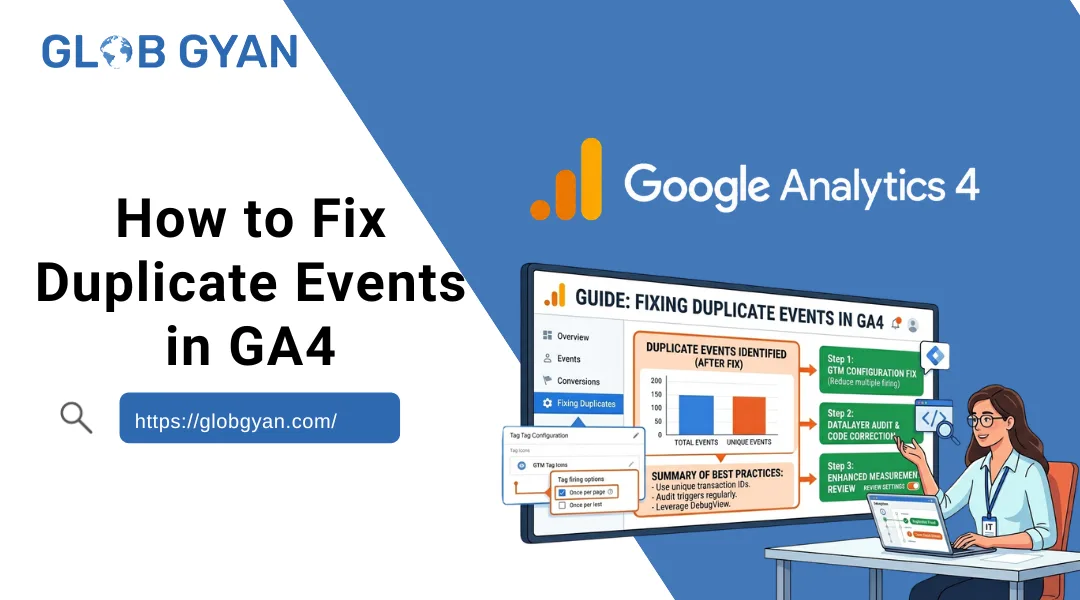
Have you noticed that your conversions, clicks, or purchases in Google Analytics 4 seem higher than expected? If so, there’s a good chance you’re dealing with GA4 duplicate events.
Duplicate event tracking is one of the most common GA4 tracking issues faced by marketers, business owners, developers, and PPC specialists. When an event fires twice instead of once, your reports become inaccurate, conversion data gets inflated, and marketing decisions are based on misleading information.
For example, if a user submits a contact form once but GA4 records two form submissions, your conversion reports will show double the actual leads. Similarly, duplicate purchase events can make your revenue appear much higher than it really is.
The good news is that most Google Analytics 4 duplicate events can be identified and fixed with a systematic approach. In this guide, you’ll learn what causes duplicate events, how to find them, and the exact steps to fix duplicate events in GA4 before they impact your analytics and advertising performance.
What Are Duplicate Events in GA4?
If you’ve ever checked your Google Analytics 4 reports and noticed that your event counts seem unusually high, there’s a good chance you’re dealing with GA4 duplicate events.
In simple terms, a duplicate event occurs when Google Analytics 4 records the same user action more than once, even though the action only happened once. This creates inaccurate data and can make it difficult to understand how users are actually interacting with your website.
Google Analytics 4 is built around an event-based tracking model. Unlike Universal Analytics, which focused heavily on pageviews and sessions, GA4 tracks almost every user interaction as an event. Whenever a visitor performs an action on your website, GA4 records it and sends the information to your analytics reports.
Some of the most common events tracked in GA4 include:
- Page views
- Button clicks
- Form submissions
- Purchases
- Scroll tracking
- File downloads
- Video engagement
- Outbound link clicks
Under normal circumstances, each user action should generate a single event. However, when something is misconfigured in your tracking setup, the same action may trigger multiple events. This issue is known as GA4 event duplication or Google Analytics 4 duplicate events.
Understanding Duplicate Events with a Real Example
Let’s say a visitor lands on your website and clicks the “Contact Us” button once.
What Should Happen?
GA4 should record:
click event = 1
This means one click occurred and one event was tracked.
What Actually Happens During Duplication?
Due to a tracking issue, GA4 records:
click event = 2
Even though the user clicked only once, Google Analytics reports two clicks.
At first glance, this may not seem like a major problem. However, when hundreds or thousands of users visit your website, duplicate events can significantly distort your analytics data.
For example:
| Actual Clicks | GA4 Recorded Clicks |
| 100 | 200 |
| 500 | 1,000 |
| 1,000 | 2,000 |
This makes it appear that user engagement is much higher than it actually is.
Why Duplicate Events Are a Problem
Many website owners don’t notice duplicate tracking immediately because the reports still appear to be working. The problem becomes obvious when marketing decisions are based on inaccurate data.
For example, imagine you’re running a Google Ads campaign and using a form submission as a conversion event.
If 50 people submit your form, but GA4 records 100 form submissions due to duplicate tracking, your reports will suggest that your campaign generated twice as many leads as it actually did.
This can lead to:
- Incorrect conversion tracking
- Inflated marketing performance reports
- Misleading ROI calculations
- Poor campaign optimization decisions
- Wasted advertising budget
Common Types of Duplicate Events in GA4
Duplicate tracking can affect almost any event in Google Analytics 4. Some of the most frequently reported issues include:
Duplicate Page Views
A single page load generates multiple page_view events.
This often happens when GA4 is installed more than once through different methods.
Duplicate Click Events
One button click triggers multiple click events.
This is usually caused by duplicate triggers in Google Tag Manager.
Duplicate Form Submissions
A form is submitted once, but GA4 records multiple submissions.
This can inflate lead generation metrics and make conversion reports unreliable.
Duplicate Purchase Events
This is one of the most serious tracking issues for ecommerce websites.
If a customer completes one purchase but GA4 records two purchase events, revenue data becomes inaccurate and business reporting is affected.
Duplicate Scroll Events
A user scrolls down a page once, but multiple scroll events are generated due to conflicting tracking configurations.
How Duplicate Events Affect Business Decisions
Accurate analytics data is essential for making informed marketing decisions. When duplicate events exist, every report built on that data becomes less reliable.
For example, a business owner might see:
- Higher conversion rates than expected
- Increased revenue numbers
- More leads in reports
- Better campaign performance metrics
Based on this information, they may decide to increase advertising spend or invest more heavily in a specific marketing channel.
However, if those numbers are inflated by GA4 duplicate events, the decisions are being made using incorrect data.
This is why identifying and fixing GA4 tracking issues should be a priority for every website owner, marketer, and analyst.
How Duplicate Events Usually Occur
Most duplicate event problems are caused by tracking configuration errors rather than issues with GA4 itself.
Some common causes include:
- Multiple GA4 tracking codes installed on the website
- Google Tag Manager and hardcoded GA4 scripts running together
- Duplicate GTM triggers
- Conflicts with Enhanced Measurement
- Incorrect Create Event rules
- Duplicate dataLayer pushes
- Tracking plugins firing the same event multiple times
The good news is that these issues can usually be identified through tools such as GA4 DebugView, Google Tag Manager Preview Mode, and browser developer tools.
Why Duplicate Events in GA4 Are a Serious Problem
At first glance, GA4 duplicate events may seem like a minor tracking issue. After all, if your reports show a few extra clicks or conversions, it might not appear to be a major concern. However, duplicate tracking can have a significant impact on your analytics data, marketing performance, and business decisions.
Many website owners, marketers, and business managers don’t discover duplicate events until they notice unusual spikes in conversions, revenue, or user engagement metrics. By that point, inaccurate data may have already influenced important marketing and advertising decisions.
The biggest challenge with Google Analytics 4 duplicate events is that they create a false picture of how users interact with your website. Since businesses rely on analytics data to measure success and optimize campaigns, even small tracking errors can lead to costly mistakes.
Let’s explore why duplicate events are a serious issue and how they can affect your business.
Incorrect Conversion Tracking
One of the most common consequences of GA4 event duplication is inaccurate conversion tracking.
Conversions are often used to measure important actions such as:
- Contact form submissions
- Newsletter signups
- Demo requests
- Phone call clicks
- Lead generation forms
- Product purchases
When a conversion event is recorded more than once, GA4 reports higher conversion numbers than what actually occurred.
Example
Imagine your website receives 100 form submissions during a month.
In a properly configured GA4 setup:
Actual Form Submissions = 100
GA4 Conversions = 100
However, if duplicate tracking exists:
Actual Form Submissions = 100
GA4 Conversions = 200
The analytics report now suggests that your website generated twice as many leads as it actually did.
As a result, you may believe your landing page, ad campaign, or marketing strategy is performing exceptionally well when the data is inaccurate.
This is why duplicate conversions in GA4 can be dangerous for businesses that depend on data-driven decision-making.
Inflated Revenue Data
For ecommerce websites, duplicate tracking can become even more serious.
One of the most damaging issues is duplicate purchase events in GA4.
When a customer places a single order, GA4 should record one purchase event and one revenue value. If the purchase event fires multiple times, your revenue reports become artificially inflated.
Example
Suppose a customer purchases a product worth ₹5,000.
Correct tracking:
Purchase Event = 1
Revenue = ₹5,000
Duplicate tracking:
Purchase Event = 2
Revenue = ₹10,000
Although only one sale occurred, GA4 reports double the revenue.
Now imagine this happening across hundreds of transactions every month. Revenue reports become unreliable, making it difficult to understand actual business performance.
For ecommerce store owners, duplicate purchase events GA4 can lead to:
- Incorrect sales reports
- Misleading profit calculations
- Poor inventory forecasting
- Inaccurate return on ad spend (ROAS)
- Faulty business decisions
This is why ecommerce websites should regularly audit their purchase tracking and transaction setup.
Misleading Marketing Reports
Marketing teams rely heavily on GA4 reports to evaluate performance.
Analytics data helps answer important questions such as:
- Which traffic source generates the most leads?
- Which landing page converts best?
- Which campaign produces the highest ROI?
- Which audience segment performs better?
When GA4 tracking issues cause duplicate events, these reports become unreliable.
Example
Suppose you are running three marketing campaigns:
| Campaign | Actual Leads |
| Google Ads | 50 |
| Facebook Ads | 40 |
| Organic Search | 30 |
Due to duplicate event tracking, GA4 reports:
| Campaign | Reported Leads |
| Google Ads | 100 |
| Facebook Ads | 80 |
| Organic Search | 60 |
The numbers look impressive, but they do not reflect reality.
As a result, marketers may:
- Increase budgets unnecessarily
- Invest in underperforming campaigns
- Stop campaigns that are actually working
- Miscalculate marketing ROI
Since modern marketing strategies depend on analytics insights, duplicate events can significantly affect campaign planning and performance evaluation.
Poor Google Ads Optimization
One of the most overlooked consequences of GA4 duplicate events is their impact on Google Ads performance.
Many advertisers import GA4 conversions directly into Google Ads and use automated bidding strategies such as:
- Maximize Conversions
- Target CPA
- Target ROAS
- Maximize Conversion Value
These strategies depend entirely on accurate conversion data.
How Duplicate Conversions Affect Google Ads
Google Ads uses historical conversion data to determine:
- Which users are likely to convert
- Which keywords perform best
- Which audiences should receive higher bids
- How much to spend during each auction
If duplicate conversions are being imported into Google Ads, the platform receives misleading signals.
Example
Actual conversions:
50 conversions
Imported GA4 conversions:
100 conversions
Google Ads believes your campaign is generating twice as many conversions as it really is.
As a result, the algorithm may:
- Increase bids unnecessarily
- Optimize toward low-quality traffic
- Spend budget inefficiently
- Reduce campaign profitability
This is one of the main reasons PPC specialists regularly audit their GA4 conversion tracking setup.
How to Identify Duplicate Events in GA4
Before you start fixing GA4 duplicate events, it’s important to confirm whether duplicate tracking actually exists. Many website owners assume there is a problem because conversion numbers look unusually high, but the real issue could be something else, such as increased traffic or changes in user behavior.
The best approach is to verify the issue using GA4’s built-in debugging tools and Google Tag Manager testing features. By identifying where and when the duplicate event occurs, you can find the root cause much faster and avoid making unnecessary changes to your tracking setup.
Fortunately, Google Analytics 4 provides several ways to detect GA4 event duplication and GA4 tracking issues.
Check Realtime Reports
The easiest place to start is the Realtime Report in GA4.
Realtime reporting allows you to see user activity as it happens, making it useful for testing whether an event fires once or multiple times.
How to Access Realtime Reports
Follow this path:
GA4 → Reports → Realtime
Once the report is open:
- Visit your website.
- Perform the action you want to test.
- Return to the Realtime report.
- Monitor the event count.
Example
Suppose you’re testing a contact form submission.
You submit the form one time.
Expected Result
form_submit = 1
Duplicate Tracking Result
form_submit = 2
If the same event appears multiple times even though you only completed the action once, duplicate tracking may exist.
What Realtime Reports Can Reveal
Realtime reports are useful for identifying issues such as:
- Duplicate click events
- Duplicate form submissions
- Duplicate outbound click tracking
- Duplicate page views
- Duplicate purchase events
However, Realtime reports only show the symptoms of the problem. To identify the actual cause, you’ll need a more advanced debugging tool
Use DebugView
When troubleshooting Google Analytics 4 duplicate events, DebugView is one of the most valuable tools available.
Unlike standard reports, DebugView provides a detailed event timeline and shows exactly what GA4 receives from your website.
Why DebugView Is Important
DebugView allows you to:
- View events in real time
- Check event parameters
- Verify event names
- Detect duplicate events instantly
- Troubleshoot GA4 event tracking errors
How to Open DebugView
Navigate to:
Admin → DebugView
If you’re using Google Tag Manager Preview Mode or a debugging extension, your events should appear automatically.
Testing for Duplicate Events
Once DebugView is open:
- Visit your website.
- Perform the action you want to test.
- Watch the event stream.
Example
Imagine you’re testing a button click.
You click the button once.
Correct Tracking
click
Duplicate Tracking
click
click
If the event appears twice within seconds of a single interaction, you’ve confirmed that duplicate tracking exists.
Check Event Parameters
DebugView also helps you inspect event parameters.
For example:
- page_location
- page_referrer
- link_url
- transaction_id
- button_text
By comparing event parameters, you can determine whether duplicate events are truly identical or whether they are being triggered by different conditions.
This information is extremely useful when diagnosing GA4 event tracking errors.
Verify Using Google Tag Manager Preview Mode
If your website uses Google Tag Manager (GTM), Preview Mode should be one of your primary troubleshooting tools.
Most duplicate event problems originate from:
- Duplicate tags
- Multiple triggers
- Incorrect trigger conditions
- Data Layer issues
Preview Mode helps you identify exactly which tags are firing during a user interaction.
How to Open Preview Mode
- Open Google Tag Manager.
- Click Preview.
- Enter your website URL.
- Connect Tag Assistant.
Once connected, every interaction on your website becomes visible inside the debugging panel.
What to Look For
Perform the action that is generating duplicate events.
For example:
- Button click
- Form submission
- Purchase completion
- Link click
Then review the tags that fired.
Correct Setup
Button Click
↓
GA4 Event Tag Fired Once
Duplicate Setup
Button Click
↓
GA4 Event Tag Fired
GA4 Event Tag Fired
or
Button Click
↓
Trigger A Fired
Trigger B Fired
In these situations, GTM is likely responsible for the duplicate event.
Common Causes of Duplicate Events in GA4
When website owners discover GA4 duplicate events, their first instinct is often to look for a bug in Google Analytics 4. However, in most cases, the problem isn’t caused by GA4 itself. Instead, duplicate tracking usually occurs because of configuration errors, tracking conflicts, or implementation mistakes within your website, Google Tag Manager setup, or analytics tools.
Before you can successfully fix duplicate events in GA4, you need to understand what is causing them. Identifying the root cause is the most important step because applying the wrong solution may create additional tracking issues.
Below are the most common reasons why Google Analytics 4 duplicate events occur and how each issue can affect your reporting.
Multiple GA4 Tags Installed
One of the most common causes of GA4 event duplication is having multiple GA4 tracking implementations on the same website.
This often happens when different team members install analytics using different methods without realizing that tracking is already active.
Common Scenario
A website owner installs GA4 manually by adding the tracking code directly into the website’s header section.
Later, a marketer sets up Google Analytics through Google Tag Manager (GTM) because it provides more flexibility and easier event management.
The result looks like this:
GA4 Code Added Manually
+
GA4 Added Through Google Tag Manager
=
Duplicate Events
Now every user interaction is sent to Google Analytics twice.
Example
A visitor loads a webpage once.
Expected Result
page_view = 1
Actual Result
page_view = 2
The same issue can affect:
- Click events
- Form submissions
- Purchases
- Scroll tracking
- Custom conversions
How to Check
Review your website for:
- Hardcoded GA4 scripts
- Google Tag Manager containers
- CMS analytics plugins
- Ecommerce tracking extensions
If the same Measurement ID appears in multiple locations, duplicate tracking is likely occurring.
Duplicate GTM Triggers
Another major cause of GA4 tracking issues is duplicate trigger configurations inside Google Tag Manager.
In GTM, triggers determine when a tag should fire. If a single GA4 event tag is connected to multiple triggers that activate during the same interaction, duplicate events can occur.
Example
Suppose you have a button click event.
The same GA4 event tag is connected to:
- All Clicks Trigger
- Link Click Trigger
When a user clicks the button:
Trigger A Fires
+
Trigger B Fires
=
Two Events Sent to GA4
Why This Happens
During GTM setup, marketers often create multiple triggers for testing purposes and forget to remove unnecessary ones.
Over time, the configuration becomes more complex, increasing the risk of duplicate event firing.
Commonly Affected Events
- Contact form submissions
- CTA button clicks
- Phone number clicks
- Newsletter signups
- Lead generation events
Using Google Tag Manager Preview Mode can quickly reveal whether multiple triggers are firing for a single action.
Enhanced Measurement Conflicts
Google Analytics 4 includes a feature called Enhanced Measurement, which automatically tracks several user interactions without requiring additional configuration.
These automatically tracked events include:
- Outbound click tracking
- Scroll tracking
- File downloads
- Site search
- Video engagement
- Page views
Enhanced Measurement is extremely useful, but problems arise when website owners create custom tracking for actions that GA4 is already tracking automatically.
Example
GA4 automatically tracks outbound link clicks.
At the same time, a custom GTM event is configured to track outbound clicks manually.
Now, when a user clicks an external link:
Enhanced Measurement Event Fires
+
Custom GTM Event Fires
=
Duplicate Outbound Click Event
Signs of Enhanced Measurement Conflicts
You may notice duplicate:
- Outbound click events
- Scroll events
- Download events
- Search events
Many marketers discover this issue while troubleshooting GA4 duplicate click events or inflated engagement metrics.
Create Event Rules in GA4
GA4 provides a feature called Create Event, which allows users to generate new events based on existing ones.
While this feature is powerful, incorrect configurations can unintentionally create duplicate tracking.
Example
Suppose an existing event named:
click
already exists.
A marketer creates a new event rule based on the same click event but doesn’t configure the conditions correctly.
The result:
click
+
new custom event
=
Duplicate tracking behavior
In some cases, the new event may fire every time the original event occurs, making reports difficult to interpret.
Common Mistakes
- Broad matching conditions
- Incorrect event naming
- Unnecessary event creation rules
- Duplicating existing conversion events
How to Check
Navigate to:
GA4 → Admin → Events → Create Events
Review all event creation rules and verify that they are not duplicating existing event tracking.
Duplicate Data Layer Pushes
For advanced implementations, especially ecommerce websites, the dataLayer plays a critical role in event tracking.
The dataLayer acts as a bridge between your website and Google Tag Manager. It sends information such as purchases, form submissions, product views, and other user interactions.
How Duplicate Pushes Occur
Developers may accidentally push the same event multiple times.
Example:
dataLayer.push({
event: “purchase”
});
dataLayer.push({
event: “purchase”
});
Although the user completed only one purchase, GTM receives two purchase events.
Why This Is a Serious Issue
Duplicate dataLayer pushes frequently affect:
- Purchase tracking
- Add-to-cart events
- Lead generation forms
- Checkout tracking
- Ecommerce revenue reporting
This is one of the leading causes of duplicate purchase events in GA4.
Common Causes
- JavaScript implementation errors
- Ecommerce plugin conflicts
- Single-page application (SPA) tracking issues
- Incorrect custom development
Debugging tools such as GTM Preview Mode and browser developer tools can help identify duplicate dataLayer activity.
Plugin Conflicts
Many websites rely on plugins to simplify analytics implementation. While plugins can save time, they can also create tracking conflicts.
This issue is particularly common on:
- WordPress websites
- WooCommerce stores
- Shopify stores
- Magento websites
- Custom CMS platforms
Example
A website may have:
- A GA4 plugin
- A GTM plugin
- An ecommerce tracking plugin
All three tools attempt to send the same event.
Result:
Plugin 1 Sends Event
+
Plugin 2 Sends Event
+
Plugin 3 Sends Event
=
Triple Tracking
Common Plugin-Related Issues
- Duplicate page views
- Duplicate purchases
- Duplicate lead events
- Duplicate add-to-cart tracking
- Duplicate outbound click events
Because plugins often work in the background, website owners may not realize multiple tracking systems are active simultaneously.
Fix #1: Check for Double GA4 Installation
If you’re trying to fix duplicate events in GA4, the first thing you should investigate is whether Google Analytics 4 has been installed more than once on your website.
This is one of the most common causes of GA4 duplicate events, especially on websites that have gone through multiple redesigns, developer changes, or marketing updates over time.
Many website owners unknowingly add Google Analytics through different methods. For example, a developer may install the GA4 tracking code manually in the website’s source code, while a marketer later adds the same GA4 property through Google Tag Manager (GTM). Since both implementations are active, every event gets sent to Google Analytics twice.
The result is duplicate page views, duplicate clicks, duplicate form submissions, and even duplicate purchase events.
What Is Double GA4 Installation?
Double installation occurs when the same Google Analytics 4 property is tracking user activity from more than one source.
For example:
Method 1:
GA4 Code Added Directly to Website
Method 2:
Same GA4 Property Added Through Google Tag Manager
Since both tracking methods are active simultaneously, every user action is recorded twice.
Real-World Example
A visitor opens your homepage.
What Should Happen
page_view = 1
What Actually Happens
page_view = 2
The same issue can affect every event on your website:
- page_view
- click
- form_submit
- generate_lead
- purchase
- scroll
- outbound_click
Because duplicate tracking affects all events, reports quickly become unreliable.
Signs of Double GA4 Installation
Before digging into technical settings, there are several warning signs that may indicate Google Analytics is installed multiple times.
Event Count Is Exactly Doubled
One of the biggest clues is when event numbers appear almost exactly twice as high as expected.
For example:
| Actual Actions | GA4 Events |
| 100 Clicks | 200 Clicks |
| 50 Leads | 100 Leads |
| 20 Purchases | 40 Purchases |
If the numbers are consistently doubled, duplicate installation should be your first suspect.
Page Views Consistently Appear Twice
Page view duplication is often easier to spot than other event issues.
For example, when you test your website:
Expected:
page_view = 1
Actual:
page_view = 2
If every page generates two page_view events, GA4 is likely being loaded from multiple sources.
Every Event Duplicates Across the Website
Another major indicator is when duplication isn’t limited to one event.
Instead, all tracked events are affected:
- Button clicks
- Form submissions
- Scroll tracking
- File downloads
- Ecommerce purchases
When every event duplicates, the problem usually points to a site-wide tracking configuration issue rather than a specific GTM trigger.
How to Check for Double GA4 Installation
The next step is identifying where GA4 is installed.
Many websites unknowingly contain multiple tracking implementations.
Check for Hardcoded GA4 Scripts
Ask your developer or inspect your website code to determine whether GA4 has been manually added.
A typical GA4 installation looks like this:
<!– Google tag (gtag.js) –>
<script async src=”https://www.googletagmanager.com/gtag/js?id=G-XXXXXXXXXX”></script>
If this code exists in your website header, GA4 may already be installed directly.
Now check whether GTM is also sending the same data.
Check Google Tag Manager
Open your GTM container and look for:
- GA4 Configuration Tags
- Google Tag
- GA4 Event Tags
Review the Measurement ID being used.
Example:
G-ABC123XYZ
If the same Measurement ID is already hardcoded on the website, both implementations are sending data simultaneously.
Check WordPress Analytics Plugins
WordPress users frequently encounter duplicate tracking because plugins often install GA4 automatically.
Common examples include:
- MonsterInsights
- Site Kit
- ExactMetrics
- WooCommerce Analytics Plugins
- Pixel & Analytics Plugins
Sometimes website owners install a plugin and later add GTM without realizing both systems are tracking the same property.
What to Look For
Check plugin settings for:
- Google Analytics IDs
- Measurement IDs
- Automatic event tracking
- Ecommerce tracking options
If the plugin and GTM use the same GA4 property, duplicate events may occur.
How to Confirm the Problem
A simple way to verify duplicate installation is by using GA4 DebugView or Google Tag Manager Preview Mode.
Using DebugView
Navigate to:
GA4 → Admin → DebugView
Visit your website and load a page.
If you immediately see:
page_view
page_view
for a single page load, double installation is likely occurring.
Using GTM Preview Mode
Open:
Google Tag Manager → Preview
Then:
- Connect your website.
- Reload a page.
- Review fired tags.
If a hardcoded GA4 script and a GTM GA4 tag both send page views, you’ve identified the source of the duplication.
How to Fix Double GA4 Installation
Once you identify multiple tracking methods, the solution is straightforward.
Remove Duplicate Tracking Sources
Keep only one active implementation.
For example:
Option A
Use Google Tag Manager Only
Remove:
- Hardcoded GA4 scripts
- Analytics plugins sending events
Option B
Use Direct GA4 Installation Only
Remove:
- GA4 tags from GTM
- Duplicate plugin tracking
The important thing is ensuring that only one source sends data to your GA4 property.
Fix #2: Review Google Tag Manager Configuration
After checking for double GA4 installation, the next step in troubleshooting GA4 duplicate events is reviewing your Google Tag Manager (GTM) configuration.
In fact, a large percentage of GA4 tracking issues originate inside GTM. Since Google Tag Manager controls when and how events are sent to Google Analytics 4, even a small mistake in tag or trigger setup can cause duplicate tracking.
Many website owners assume that if GA4 is installed correctly, all events will work perfectly. However, problems often occur when multiple tags, overlapping triggers, or incorrect conditions cause the same event to fire more than once.
If your website uses GTM for analytics implementation, conducting a thorough audit of your container can help identify and fix GA4 event duplication before it affects your reporting.
Why Google Tag Manager Can Cause Duplicate Events
Google Tag Manager works using three main components:
Tags
Tags are responsible for sending data to platforms such as:
- Google Analytics 4
- Google Ads
- Meta Pixel
- LinkedIn Ads
Triggers
Triggers determine when a tag should fire.
Examples include:
- Button clicks
- Form submissions
- Page views
- Scroll depth
- Video interactions
Variables
Variables provide additional information such as:
- Page URL
- Click text
- Form ID
- Button classes
When tags and triggers are not configured properly, GTM may send the same event multiple times to GA4.
Audit All GA4 Event Tags
The first step is reviewing every GA4 event tag inside your GTM container.
Over time, websites often accumulate old tags, test tags, and duplicate configurations created by different developers or marketers.
What to Look For
Open your GTM workspace and review all GA4-related tags.
Pay special attention to:
Similar Tags
Sometimes two different tags are created for the same action.
Example:
GA4 – Contact Form Submit
GA4 – Lead Form Submit
Both tags may track the same user interaction.
As a result, one form submission generates multiple GA4 events.
Duplicate Event Names
Another common issue is multiple tags sending identical event names.
Example:
Tag 1:
Event Name = generate_lead
Tag 2:
Event Name = generate_lead
When both tags fire simultaneously, GA4 records duplicate conversions.
This is one of the most common causes of duplicate conversions in GA4.
Overlapping Triggers
Even if tags are different, overlapping triggers can cause duplication.
Example:
Tag A fires on:
All Button Clicks
Tag B fires on:
Contact Form Button Click
When the contact form button is clicked, both triggers activate.
Result:
generate_lead
generate_lead
GA4 receives the same event twice.
Check Trigger Conditions Carefully
Once you’ve reviewed your tags, the next step is auditing trigger conditions.
Triggers are often the primary reason behind GA4 duplicate events.
How Trigger Duplication Happens
A common mistake is assigning multiple triggers to the same event tag.
Example
Suppose you want to track clicks on a “Get Quote” button.
You create:
Click Trigger A
and
Click Trigger B
Both triggers are configured to detect the same button interaction.
Now when a visitor clicks the button:
Click Trigger A Fires
+
Click Trigger B Fires
=
Two Events Sent to GA4
Although the user clicked only once, Google Analytics records two clicks.
Broad Trigger Conditions
Another common issue is using conditions that are too broad.
Example:
Click URL contains
Instead of:
Click URL equals specific URL
Broad conditions often match multiple elements and cause unexpected tracking behavior.
Form Tracking Issues
Form submission tracking is particularly vulnerable to duplicate triggers.
Example:
Form Submission Trigger
+
Button Click Trigger
When the form is submitted:
- Button click fires.
- Form submission fires.
Both events may send the same conversion to GA4.
This creates inflated lead generation numbers and inaccurate reporting.
Review Trigger Exceptions
While auditing triggers, don’t forget to check trigger exceptions.
Trigger exceptions prevent tags from firing under certain conditions.
Example:
Trigger:
All Clicks
Exception:
Internal Navigation Links
Without proper exceptions, tags may fire more frequently than intended.
This can contribute to GA4 event tracking errors and duplicate event counts.
Fix #3: Review GA4 Create Event Rules
When troubleshooting GA4 duplicate events, most marketers focus on Google Tag Manager, tracking codes, or plugins. However, one of the most overlooked areas in Google Analytics 4 is the Create Event section.
Many website owners don’t realize that GA4 can automatically create new events based on existing events. While this feature is extremely useful for customizing tracking without modifying website code, an incorrectly configured event rule can lead to GA4 event duplication, inflated conversion counts, and confusing reports.
If you’ve already checked your GTM setup and duplicate tracking still exists, reviewing your GA4 Create Event rules should be your next step.
What Is the Create Event Feature in GA4?
The Create Event feature allows you to generate a new event from an existing event directly within Google Analytics 4.
Instead of creating a new tag in Google Tag Manager, you can tell GA4:
“Whenever Event A happens, create Event B.”
This is useful when you want to track specific user actions without involving a developer or modifying your GTM configuration.
Example
Suppose your website tracks:
click
But you specifically want to measure coupon code copy actions.
You can create a new event called:
coupon_copy
based on the existing click event.
Now, whenever the specified click occurs, GA4 creates the custom event automatically.
This sounds simple, but incorrect configurations can quickly create tracking problems.
Why Create Event Rules Can Cause Duplicate Events
The biggest issue occurs when marketers create custom events without fully understanding how the original event is already being tracked.
In many cases:
- The original event continues to exist.
- A new custom event is created.
- Both events are counted as conversions.
- Reports become inflated.
Example Scenario
Original event:
click
Created event:
coupon_copy
If the rule is configured correctly, this is not necessarily a problem.
However, issues arise when:
- Conditions are too broad.
- The new event duplicates an existing event.
- Multiple Create Event rules target the same action.
- Both events are marked as conversions.
The result can look like duplicate tracking even though the duplication originates inside GA4 rather than Google Tag Manager.
How to Access Create Event Rules in GA4
To review your event creation settings:
Step 1
Open your Google Analytics 4 property.
Step 2
Navigate to:
Admin → Events → Create Events
Here you’ll see all custom event rules currently active in your property.
Many businesses discover old event rules they completely forgot about.
What to Look For During Your Audit
When reviewing event creation rules, pay attention to the following issues.
Duplicate Event Logic
Check whether a custom event is simply recreating an existing event.
For example:
Original Event:
generate_lead
Created Event:
lead_generated
If both represent the same user action, your reports may become unnecessarily complicated and potentially inflated.
Broad Matching Conditions
One of the most common mistakes is creating conditions that match too many events.
Example
Rule:
event_name = click
This means every click event on your website can potentially generate the custom event.
Instead of tracking one specific interaction, GA4 begins creating hundreds or thousands of additional events.
This often leads to inflated event counts and confusion when analyzing reports.
Multiple Rules for the Same Action
Over time, different team members may create similar event rules.
Example:
coupon_copy
and
coupon_click
Both are triggered from the same original click event.
Now a single user interaction generates multiple custom events.
This makes it difficult to determine which metric should actually be used for reporting.
Duplicate Conversion Events
Another common issue occurs when both the original event and the created event are marked as conversions.
Example:
Original Event:
generate_lead
Created Event:
contact_form_conversion
If both events are configured as conversions, one form submission may appear as two conversions inside GA4 reports.
This is a common source of duplicate conversions in GA4.
Real-World Example of Duplicate Tracking
Imagine a visitor clicks a coupon copy button once.
Actual User Action
1 Button Click
Original Event
click
Create Event Rule
coupon_copy
Report Outcome
click = 1
coupon_copy = 1
This is normal behavior.
However, if:
- Both events are treated as conversions
- Multiple Create Event rules exist
- Additional GTM tracking is also active
The same action may appear multiple times in reports.
Many marketers mistakenly believe GTM is causing the problem when the actual source is the Create Event configuration inside GA4.
Fix #4: Check Enhanced Measurement Settings
One of the most overlooked causes of GA4 duplicate events is a conflict between Enhanced Measurement and custom event tracking. Many website owners enable Enhanced Measurement when setting up Google Analytics 4 and later create additional tracking through Google Tag Manager (GTM) without realizing that GA4 is already collecting the same data automatically.
As a result, a single user action can be tracked twice, leading to GA4 event duplication, inflated engagement metrics, and inaccurate conversion reports.
If you’ve already checked for double GA4 installation, duplicate GTM triggers, and problematic Create Event rules, the next step is to review your Enhanced Measurement settings.
What Is Enhanced Measurement in GA4?
Enhanced Measurement is a built-in feature in Google Analytics 4 that automatically tracks common user interactions without requiring any additional coding or Google Tag Manager setup.
Unlike Universal Analytics, where many events required manual configuration, GA4 can automatically collect several important interactions as soon as Enhanced Measurement is enabled.
Events Tracked by Enhanced Measurement
Depending on your settings, GA4 can automatically track:
- Page views
- Scroll tracking
- Outbound click tracking
- Site search
- File downloads
- Video engagement
- Form interactions
This feature saves time and simplifies analytics implementation for most websites.
However, problems occur when the same events are also being tracked manually.
Why Enhanced Measurement Can Cause Duplicate Events
The issue usually starts when a marketer or developer wants more control over tracking.
They create custom event tracking inside Google Tag Manager for actions that Enhanced Measurement is already recording.
Now, when a user performs a single action:
- Enhanced Measurement sends an event.
- GTM sends another event.
- GA4 receives both events.
The result is duplicate tracking.
Example
Imagine your website contains a link to an external website.
A visitor clicks the link once.
Enhanced Measurement Tracks
click
GTM Custom Event Tracks
outbound_click
or sometimes even:
click
Now GA4 records multiple events for one user interaction.
Depending on your setup, reports may show inflated engagement numbers or duplicate click events.
Events Commonly Affected by Enhanced Measurement Conflicts
While any event can potentially be duplicated, certain interactions are far more likely to experience conflicts.
Outbound Click Tracking
Outbound click tracking is one of the most common sources of GA4 tracking issues.
GA4 automatically tracks when users click links that lead to another website.
Example
A user clicks:
https://example.com
Enhanced Measurement records the click automatically.
If GTM also tracks outbound clicks, the same interaction may generate two events.
This is one of the most frequent causes of duplicate click tracking in GA4.
Scroll Tracking
Enhanced Measurement automatically records scroll events when users reach approximately 90% of a page.
Many marketers create custom scroll tracking in GTM to measure:
- 25% scroll
- 50% scroll
- 75% scroll
- 90% scroll
Problems occur when the GTM setup also tracks the 90% threshold.
Now both systems fire at the same point.
Result
scroll
scroll
The same user action appears twice inside GA4 reports.
File Download Tracking
Enhanced Measurement can automatically detect downloads of common file types such as:
- DOCX
- XLSX
- ZIP
Suppose a visitor downloads a PDF.
Enhanced Measurement records:
file_download
If a GTM event is also configured for PDF downloads, the download may be counted twice.
This often causes inflated engagement reports and inaccurate content performance analysis.
Form Interactions
Although form tracking varies depending on the website, form-related conflicts are becoming increasingly common.
Many marketers use:
- Enhanced Measurement
- GTM form triggers
- Plugin-based tracking
all at the same time.
This can lead to duplicate:
- form_start events
- form_submit events
- lead generation conversions
As a result, conversion data may appear significantly higher than actual lead counts.
How to Check Enhanced Measurement Settings
To determine whether Enhanced Measurement is causing duplicate events, review your current GA4 configuration.
Step 1: Open Your Data Stream
Navigate to:
GA4 → Admin → Data Streams
Select your website data stream.
Step 2: Open Enhanced Measurement Settings
Locate the Enhanced Measurement section and click the settings icon.
You will see options such as:
- Page views
- Scrolls
- Outbound clicks
- Site search
- Video engagement
- File downloads
- Form interactions
Review each enabled feature carefully.
Step 3: Compare with GTM
Now open your Google Tag Manager container.
Ask yourself:
- Am I tracking outbound clicks manually?
- Am I tracking file downloads manually?
- Am I tracking scroll depth manually?
- Am I tracking forms manually?
If the answer is yes, duplication may be occurring.
How to Identify an Enhanced Measurement Conflict
One of the easiest ways to detect a conflict is by using GA4 DebugView.
Navigate to:
GA4 → Admin → DebugView
Perform the action you want to test.
Example
Click an outbound link once.
Expected Result
click
Duplicate Tracking Result
click
outbound_click
or
click
click
If multiple events appear for a single interaction, investigate both Enhanced Measurement and GTM configurations.
Solution: Choose One Tracking Method
The best way to prevent GA4 event duplication is to use only one tracking method for each interaction.
Option 1: Use Enhanced Measurement Only
This approach is ideal for most websites.
Advantages:
- Easy setup
- Less maintenance
- Fewer tracking errors
- Faster implementation
If Enhanced Measurement provides the data you need, avoid creating additional GTM events for the same action.
Option 2: Use Manual GTM Tracking
For advanced tracking requirements, many analytics professionals prefer GTM.
Advantages:
- Greater customization
- Detailed event parameters
- Better naming control
- More flexibility
If you choose this approach:
- Disable the corresponding Enhanced Measurement feature.
- Keep tracking exclusively within GTM.
Avoid Using Both Methods Simultaneously
This is the most important rule.
Many Google Analytics 4 duplicate events occur because both systems are active at the same time.
Incorrect Setup
Enhanced Measurement Tracks Outbound Clicks
+
GTM Tracks Outbound Clicks
=
Duplicate Events
Correct Setup
Enhanced Measurement Only
OR
GTM Tracking Only
Never use both methods for the same interaction unless you intentionally need separate events and understand how they will appear in reports.
Fix #5: Verify Data Layer Implementation
If you’ve already checked your GA4 installation, Google Tag Manager configuration, Create Event rules, and Enhanced Measurement settings but are still experiencing GA4 duplicate events, the next area to investigate is your dataLayer implementation.
For simple websites, duplicate tracking is often caused by tags or triggers. However, for advanced tracking setups—especially ecommerce stores, SaaS platforms, and custom web applications—the dataLayer is frequently the root cause of GA4 event duplication.
A single mistake in the dataLayer can trigger the same event multiple times, resulting in duplicate purchases, duplicate lead submissions, inflated conversion counts, and inaccurate revenue reporting.
Because many website owners never interact directly with the dataLayer, these issues can remain hidden for months before anyone notices unusual numbers in Google Analytics 4.
What Is the Data Layer?
The dataLayer is a JavaScript object used to pass information from your website to Google Tag Manager and Google Analytics 4.
Think of it as a communication bridge between your website and your tracking tools.
When a visitor performs an action, the website pushes information into the dataLayer, and GTM reads that information to trigger tags and send data to GA4.
Example
When a customer completes a purchase:
dataLayer.push({
event: “purchase”,
transaction_id: “12345”,
value: 4999
});
Google Tag Manager detects the purchase event and sends it to GA4.
This process works perfectly when the event is pushed only once.
Problems begin when the same event is pushed multiple times.
Why Data Layer Issues Cause Duplicate Events
Unlike tracking conflicts caused by GTM or Enhanced Measurement, dataLayer issues originate directly from the website’s code.
If the website pushes the same event twice, Google Tag Manager has no way of knowing which one is correct.
It simply processes every event it receives.
As a result, GA4 records duplicate interactions.
Example
A customer completes a single purchase.
However, the website accidentally executes:
dataLayer.push({
event: “purchase”
});
dataLayer.push({
event: “purchase”
});
What Happens?
Step 1:
Purchase Event #1
is sent to GTM.
Step 2:
Purchase Event #2
is sent immediately afterward.
Result
GA4 records:
purchase = 2
even though the customer purchased only once.
This is one of the most common causes of duplicate purchase events in GA4.
Common Causes of Duplicate Data Layer Pushes
Data layer duplication can occur for several reasons.
Developer Implementation Errors
The most straightforward cause is a coding mistake.
A developer may accidentally execute the same tracking function twice.
For example:
trackPurchase();
trackPurchase();
This creates two identical dataLayer events.
Page Reload Issues
Many ecommerce websites send purchase events on the thank-you page.
If the user refreshes the page:
Purchase Page Loads Again
↓
Purchase Event Fires Again
GA4 may record a second purchase.
Without proper safeguards, revenue reports can become significantly inflated.
Single Page Application (SPA) Problems
Modern websites built with frameworks such as:
- React
- Angular
- Vue
often use Single Page Application architecture.
In SPAs, pages update dynamically without a traditional page reload.
If event listeners are not configured correctly, the same action may trigger multiple dataLayer pushes.
This frequently causes:
- Duplicate page views
- Duplicate clicks
- Duplicate form submissions
- Duplicate purchases
Ecommerce Plugin Conflicts
Many ecommerce platforms automatically push purchase data into the dataLayer.
Examples include:
- WooCommerce
- Shopify
- Magento
- BigCommerce
Problems occur when developers also implement custom ecommerce tracking.
Now two systems are pushing the same event.
Example
WooCommerce Plugin Pushes Purchase Event
+
Custom Script Pushes Purchase Event
=
Duplicate Purchase Tracking
Multiple Event Listeners
Some websites use multiple JavaScript listeners to track the same interaction.
Example:
Listener A Detects Button Click
Listener B Detects Button Click
Both listeners push identical events into the dataLayer.
As a result, GA4 records duplicate actions.
Why Duplicate Purchase Events Are Especially Dangerous
While duplicate clicks and page views are frustrating, duplicate purchase events can have a much bigger impact.
Example
Actual Order:
₹5,000
GA4 Records:
Purchase #1 = ₹5,000
Purchase #2 = ₹5,000
Total Revenue Reported:
₹10,000
The business sees double the actual revenue.
This can lead to:
- Incorrect sales reporting
- Misleading ROAS calculations
- Poor advertising decisions
- Inaccurate financial analysis
This is why ecommerce websites should regularly audit their purchase tracking implementation.
How to Check for Duplicate Data Layer Pushes
The good news is that duplicate pushes are usually easy to identify once you know where to look.
Use GTM Preview Mode
The first tool you should use is Google Tag Manager Preview Mode.
Navigate to:
Google Tag Manager → Preview
Then:
- Connect your website.
- Perform the action being tested.
- Review the event stream.
What You’re Looking For
Suppose you submit a form once.
Expected:
form_submit
Problematic:
form_submit
form_submit
If two identical events appear, duplicate dataLayer pushes may exist.
Use Browser Developer Tools
Modern browsers provide powerful debugging capabilities.
Open Developer Tools
In Chrome:
Right Click → Inspect
or
F12
Navigate to:
Console
You can inspect dataLayer activity directly and observe whether events are being pushed multiple times.
This method is particularly useful for developers investigating advanced tracking issues.
Use Data Layer Inspector Extensions
Several browser extensions make dataLayer debugging easier.
Popular tools include:
- Data Layer Inspector+
- DataLayer Checker
- GTM Debug Tools
These extensions display every dataLayer push in real time.
You can quickly identify whether duplicate events are occurring before they reach Google Analytics.
Fix #6: Prevent Duplicate Purchase Events in GA4
For ecommerce businesses, duplicate purchase events in GA4 are one of the most serious tracking issues you can encounter. While duplicate page views or click events can distort engagement metrics, duplicate purchase tracking directly impacts revenue reporting, return on ad spend (ROAS), conversion rates, and overall business performance analysis.
Imagine checking your Google Analytics 4 reports and seeing ₹1,00,000 in sales revenue, only to discover later that the actual revenue was ₹50,000 because every purchase was recorded twice. This type of error can lead to poor marketing decisions, inaccurate financial reporting, and wasted advertising budgets.
That’s why preventing duplicate purchase events GA4 should be a top priority for every ecommerce store owner, marketer, and analytics professional.
Why Purchase Tracking Is Different from Other Events
Unlike button clicks, page views, or scroll events, purchase events represent actual business transactions.
When a purchase event is duplicated, it affects critical metrics such as:
- Revenue
- Transactions
- Conversion Rate
- Return on Ad Spend (ROAS)
- Customer Acquisition Cost (CAC)
- Ecommerce Performance Reports
Because these metrics influence business decisions, even a small tracking error can have significant consequences.
Example
A customer places one order worth:
₹5,000
Correct tracking:
Transactions = 1
Revenue = ₹5,000
Duplicate tracking:
Transactions = 2
Revenue = ₹10,000
Although only one purchase occurred, GA4 reports double the revenue.
Now imagine this happening hundreds of times every month.
Why Purchase Duplication Happens
To effectively prevent duplicate tracking, you first need to understand the most common causes.
Thank-You Page Reloads
One of the oldest ecommerce tracking problems involves the order confirmation or thank-you page.
How It Happens
A customer completes an order and reaches:
/order-success
The purchase event fires successfully.
Later, the customer:
- Refreshes the page
- Revisits the confirmation page
- Uses the browser’s back button
The purchase event fires again.
Result
GA4 records:
Purchase #1
Purchase #2
for a single order.
This issue is extremely common on ecommerce websites that rely on page-load-based purchase tracking.
Multiple Purchase Triggers
Another common cause is having multiple triggers configured for the same purchase event.
Example
Inside Google Tag Manager:
Purchase Trigger A
and
Purchase Trigger B
both fire when an order is completed.
The result:
Purchase Event Sent Twice
Even though the customer purchased once, Google Analytics records two transactions.
This frequently occurs after tracking updates when old triggers remain active.
Duplicate Data Layer Pushes
As discussed in the previous section, dataLayer issues are one of the leading causes of GA4 duplicate purchase events.
Example:
dataLayer.push({
event: “purchase”
});
dataLayer.push({
event: “purchase”
});
When GTM receives both pushes:
Purchase Event #1
Purchase Event #2
GA4 records two purchases instead of one.
This problem is especially common in:
- WooCommerce stores
- Shopify custom implementations
- Magento websites
- Custom ecommerce platforms
Missing Transaction IDs
Perhaps the most critical mistake in ecommerce tracking is failing to send a unique transaction ID with every purchase.
Without transaction IDs, GA4 cannot reliably determine whether two purchase events represent:
- One purchase sent twice
- Two separate purchases
As a result, duplicate purchases may be counted as new transactions.
Use Unique Transaction IDs
The most effective way to prevent duplicate purchase events in GA4 is by implementing unique transaction IDs.
Every completed order should have its own identifier.
Example
Order Number:
ORD-1001
Purchase Event:
transaction_id: “ORD-1001”
When another purchase occurs:
transaction_id: “ORD-1002”
Each transaction receives its own unique identifier.
Why Transaction IDs Are Important
Transaction IDs help GA4 distinguish between legitimate purchases and duplicate event submissions.
Without Transaction IDs
GA4 sees:
purchase
purchase
and may count both.
With Transaction IDs
GA4 sees:
purchase
transaction_id = ORD-1001
and
purchase
transaction_id = ORD-1001
Because the same transaction ID appears twice, GA4 can identify that the event relates to the same order.
This significantly reduces the risk of inflated revenue reporting.
Test Every Purchase Flow Before Launch
Many ecommerce tracking problems occur because businesses launch analytics implementations without proper testing.
Never assume tracking works correctly simply because events appear in GA4.
Instead, thoroughly test every purchase flow.
Step 1: Place a Test Order
Create a test transaction using your website’s checkout process.
Complete the purchase exactly as a customer would.
Monitor every step carefully.
Step 2: Monitor GA4 DebugView
Open:
GA4 → Admin → DebugView
As the purchase occurs, watch the event stream.
You should see:
purchase
only once.
If multiple purchase events appear, further investigation is needed.
Step 3: Verify Transaction Data
Review all ecommerce parameters.
Check:
- transaction_id
- value
- currency
- item details
- quantity
Ensure all values are accurate.
Incorrect transaction data can create additional reporting issues beyond duplication.
Step 4: Confirm Only One Purchase Event Exists
This is the most important validation step.
Expected result:
Purchase Event = 1
Problematic result:
Purchase Event = 2
If duplicate events appear, revisit:
- GTM triggers
- Data Layer implementation
- Ecommerce plugins
- Thank-you page logic
before launching the tracking setup.
GA4 Duplicate Event Troubleshooting Checklist
When you’re dealing with GA4 duplicate events, the most important thing is not guessing—but following a structured troubleshooting process. Most tracking issues don’t happen randomly; they usually come from a small number of configuration mistakes in GA4, Google Tag Manager, Enhanced Measurement, or your website’s dataLayer.
Instead of jumping directly to fixes, use this step-by-step checklist to quickly identify the root cause of Google Analytics 4 duplicate events. This approach helps you isolate the issue faster and avoid breaking your tracking setup while trying random changes.
GA4 Duplicate Event Troubleshooting Checklist
Use this checklist whenever you notice unusual spikes, double conversions, or inconsistent analytics data:
Check for Multiple GA4 Installations
Start with the most common issue.
Verify whether GA4 is installed through more than one method:
- Hardcoded GA4 script in website code
- Google Tag Manager implementation
- WordPress or CMS analytics plugin
If the same Measurement ID is firing from multiple sources, it can easily cause GA4 event duplication across your entire website.
Review Google Tag Manager Tags
Open your GTM container and carefully audit all GA4-related tags.
Look for:
- Duplicate event tags
- Same event name used in multiple tags
- Old or unused tags still active
- Multiple GA4 configuration tags
Even a small misconfiguration in GTM can result in repeated event firing for a single user action.
Inspect Trigger Configurations
Triggers are one of the biggest hidden causes of GA4 duplicate events.
Check if:
- Multiple triggers are assigned to one tag
- Broad trigger conditions are overlapping
- Click triggers are firing for the same element
- Form submission triggers overlap with click triggers
If two triggers activate for one action, GA4 will receive the same event twice.
Test Using GTM Preview Mode
Always test your setup before publishing changes.
GTM Preview Mode helps you see exactly what happens in real time.
Check:
- Which tags fired
- Which triggers activated
- Whether the same event fired multiple times
- If any unexpected tags are running
This is one of the fastest ways to identify GA4 tracking issues caused by GTM misconfiguration.
Check GA4 DebugView
DebugView is essential for confirming whether duplicate events exist inside GA4 itself.
Navigate to:
GA4 → Admin → DebugView
Then:
- Perform a single action on your website
- Observe event flow in real time
- Check if the same event appears multiple times
If a single interaction produces multiple identical events, you are dealing with GA4 event duplication.
Review Create Event Rules
GA4’s Create Event feature can unintentionally duplicate events if not configured properly.
Check:
- Duplicate or overlapping event rules
- Broad matching conditions (like all clicks)
- Multiple custom events tracking the same interaction
- Conversion settings applied to duplicate events
Misconfigured Create Event rules can silently inflate your conversion data without any GTM involvement.
Audit Enhanced Measurement Settings
Enhanced Measurement automatically tracks common interactions—but conflicts occur when you also track them manually.
Review:
- Outbound click tracking
- Scroll tracking
- File download tracking
- Form interactions
If GTM and Enhanced Measurement track the same action, GA4 may record it twice, leading to duplicate click events or inflated engagement metrics.
Verify Data Layer Pushes
For advanced setups, especially ecommerce websites, the dataLayer is a major source of duplication.
Check whether:
- The same event is pushed multiple times
- Purchase events are fired twice
- JavaScript functions are executed more than once
- Plugins or scripts are duplicating pushes
Even a small coding mistake can result in duplicate purchase events in GA4.
Check Ecommerce Transaction IDs
For ecommerce tracking, missing or incorrect transaction IDs can cause serious reporting issues.
Ensure:
- Every purchase has a unique transaction ID
- Transaction IDs are never reused
- IDs are passed correctly via dataLayer or GTM
- GA4 receives consistent ecommerce parameters
This helps GA4 distinguish real purchases from duplicate events.
Test Conversions Before Publishing
Never deploy tracking changes without testing.
Before going live:
- Place test orders
- Submit test forms
- Click tracked buttons
- Validate events in DebugView and GTM Preview Mode
Always confirm:
- Events fire only once
- No duplicate triggers exist
- Conversion data is accurate
Conclusion
GA4 duplicate events may seem like a minor tracking issue, but they can significantly impact conversion reporting, revenue analysis, and advertising performance. Whether you’re dealing with duplicate clicks, form submissions, or duplicate purchase events GA4, identifying the root cause is critical.
In most cases, the problem originates from:
- Double GA4 installation
- Duplicate GTM triggers
- Enhanced Measurement conflicts
- Create Event rules
- Data Layer implementation errors
By using GA4 DebugView, Google Tag Manager Preview Mode, and a structured troubleshooting process, you can quickly fix duplicate events in GA4 and ensure your analytics data remains accurate.
FAQs
The most common causes are duplicate tags, multiple triggers, Enhanced Measurement conflicts, or Create Event rules.
Yes. Incorrect trigger configurations and duplicate event tags frequently create GA4 event duplication.
Review GTM tags, check Enhanced Measurement settings, audit Create Event rules, and verify transaction IDs for ecommerce events.
Open GA4 DebugView and perform the tracked action. If the same event appears multiple times for one interaction, duplication exists.
Duplicate purchase events usually result from multiple triggers, page reloads, duplicate dataLayer pushes, or missing transaction IDs.